
Custom fields let you record structured information on every asset, such as a status, a category, or a due date.
Field types
Your workspace can have four kinds of fields:
- Single Select — one value from a set of options (can drive Kanban columns)
- Multi Select — several values from a set of options
- Text — free text
- Date — a single date
Set values on an asset
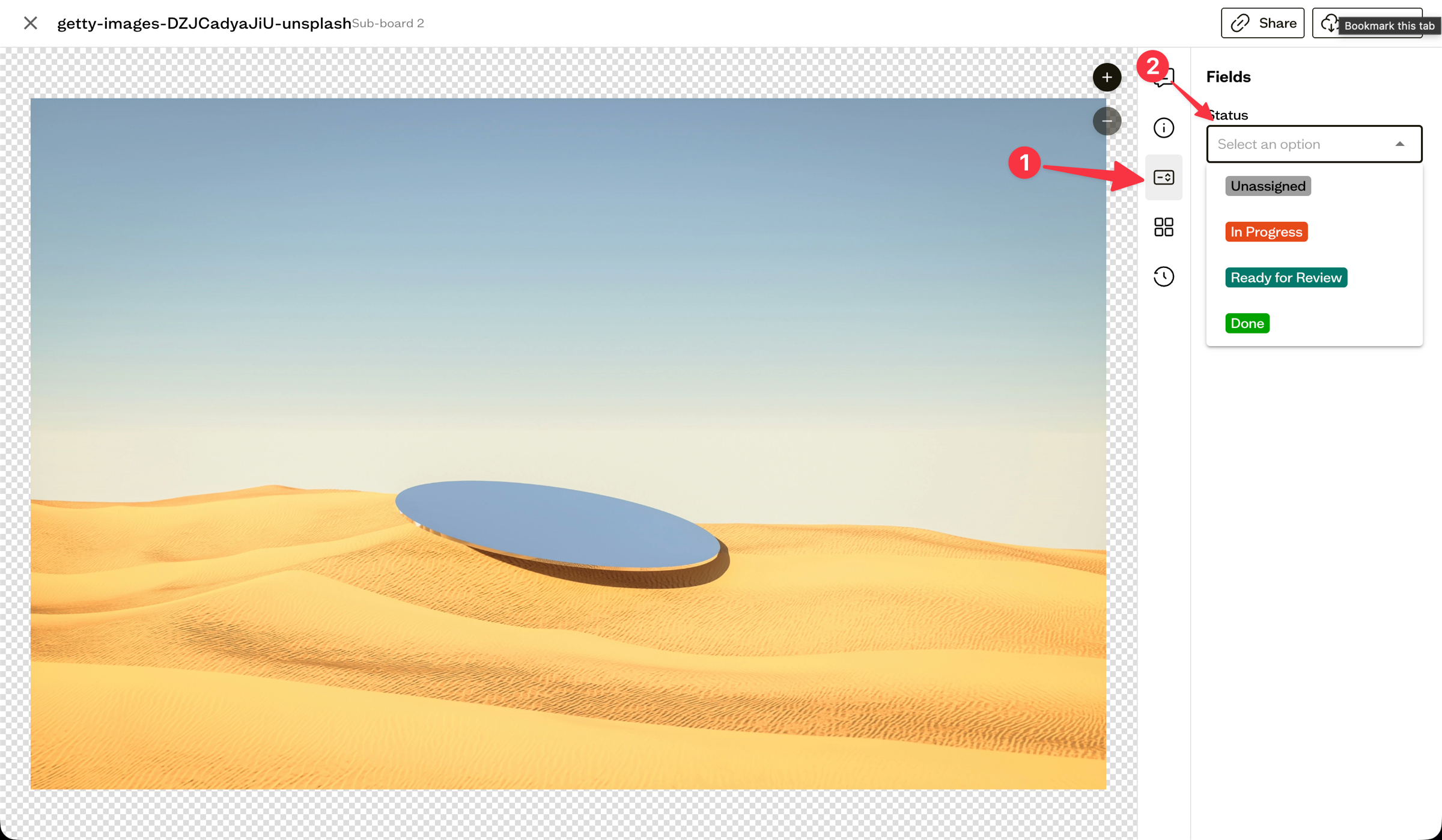
Open an asset and go to the Fields tab to fill in each field. Single and multi-select fields show colored chips; text and date fields use a standard input.
Set values in bulk
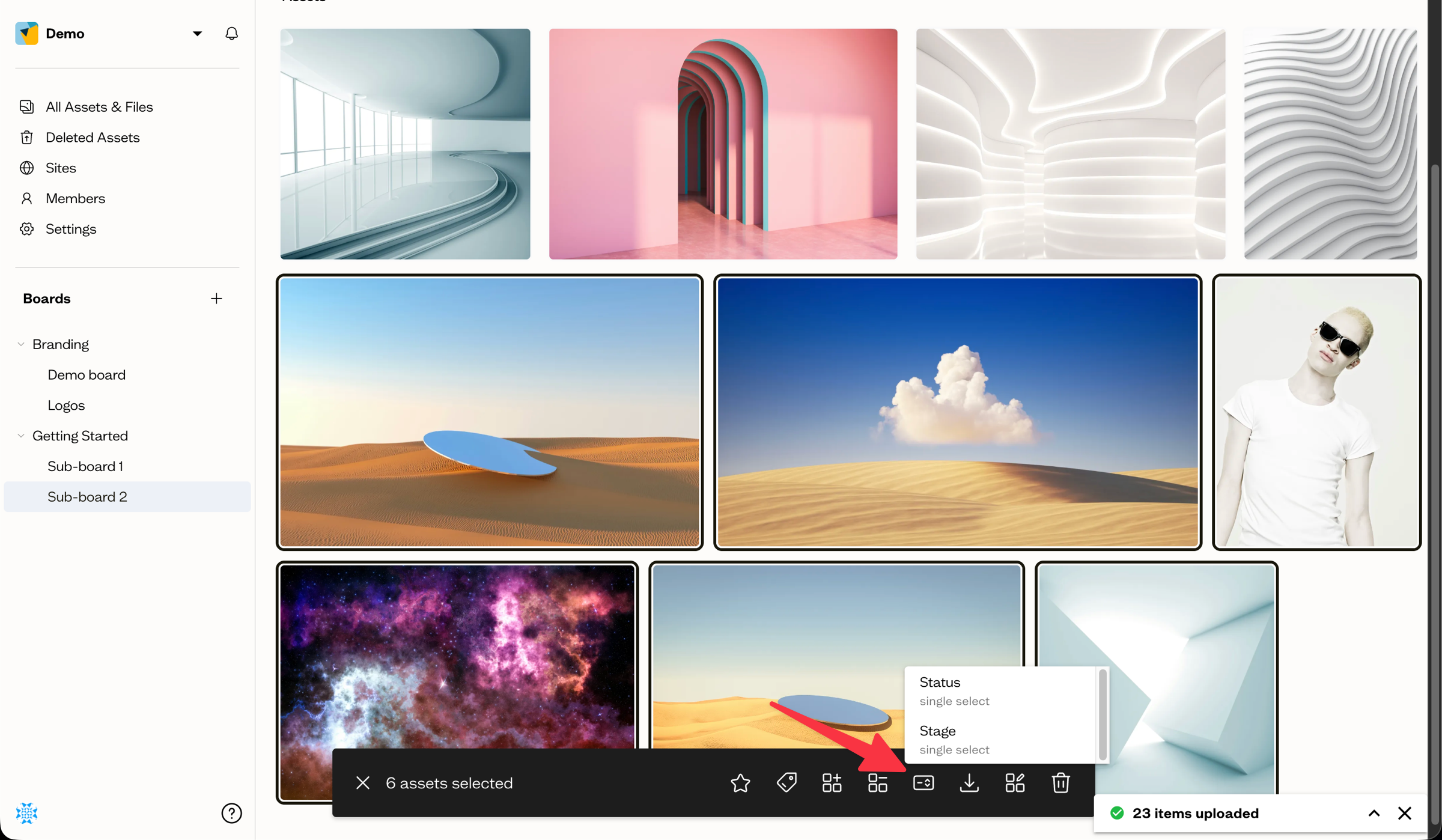
Select several assets and choose Edit Fields from the bottom action bar to set a field's value across the whole selection. See bulk actions for the other actions.
Creating new custom fields
The fields available on your assets are defined at the workspace level. If you want to create a new field or edit an existing one's options, see Creating & managing fields. Creating and editing fields requires the Admin role.
Next steps
Learn how to create and manage fields, or use a single-select field to drive a Kanban workflow.