
Tags are simple labels you attach to assets so you can group and search them. You can manage tags on a single asset or across many at once.
Add tags to an asset
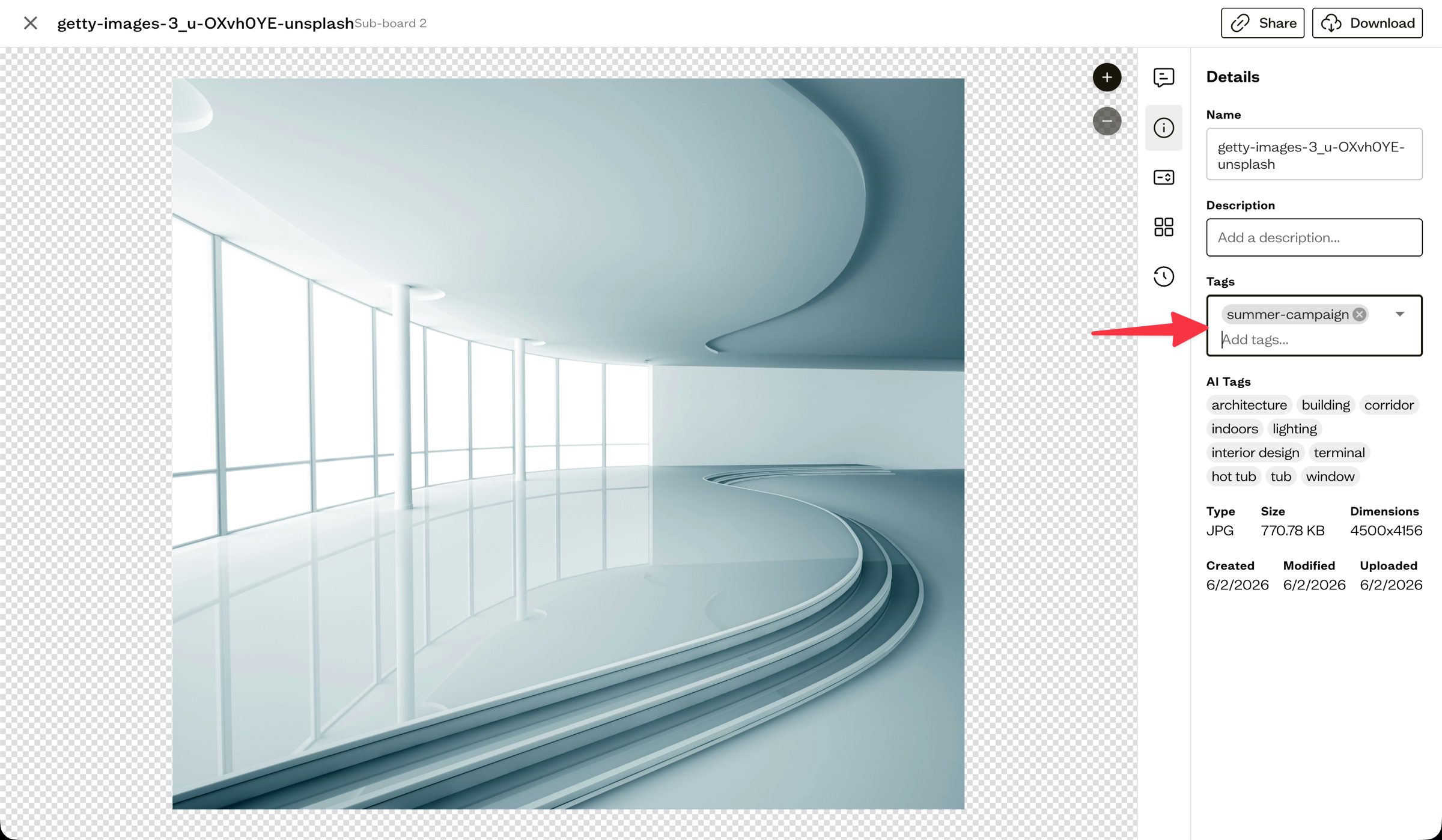
Open an asset and go to the Details tab. In the tags field, type a tag name. If it does not exist yet, you can create it on the spot; otherwise pick it from the list of existing workspace tags. Tags save as you add them.
Remove a tag
To take a tag off an asset, select the x on its chip in the Details tab. The asset itself is not affected, only the label is removed.
Edit tags in bulk
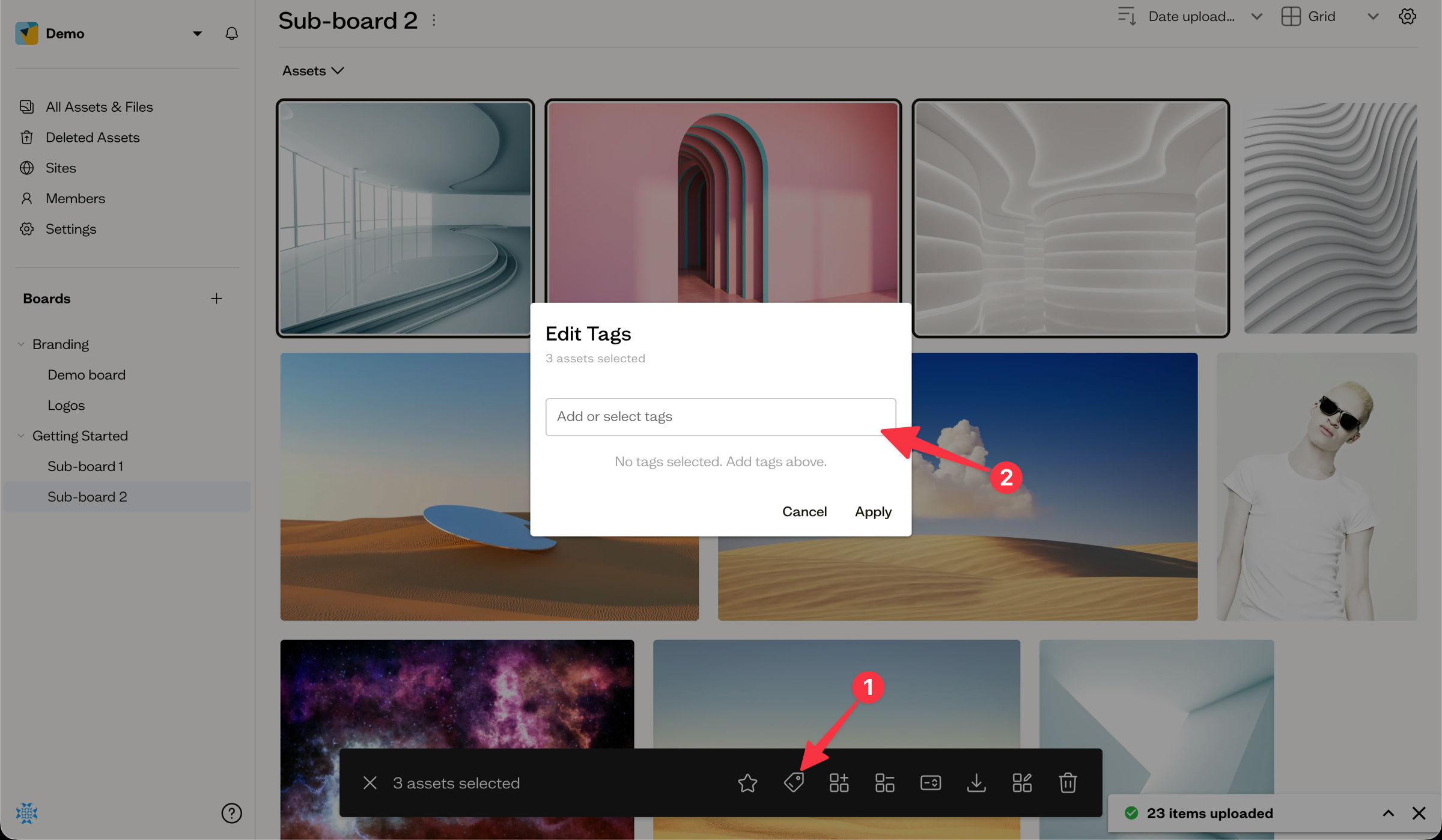
Select several assets, then choose Edit Tags from the bottom action bar or the right-click menu. Type and confirm a set of tags to apply it to the whole selection. The confirmed set replaces the existing tags on those assets, so this is a quick way to standardize tags across a group. See bulk actions for the full set of actions.
Next steps
Use the Tags filter in search to find tagged assets, or learn about AI tags that Baseline generates automatically.