
Asset versioning lets you keep a single asset up to date while preserving its full history. Instead of uploading "logo-final-v3.png", you upload new versions of the same asset and Baseline tracks each one.
Upload a new version
Open an asset and select the Versions tab in the right sidebar, then select New. You can also choose Upload new version from the asset's right-click menu.
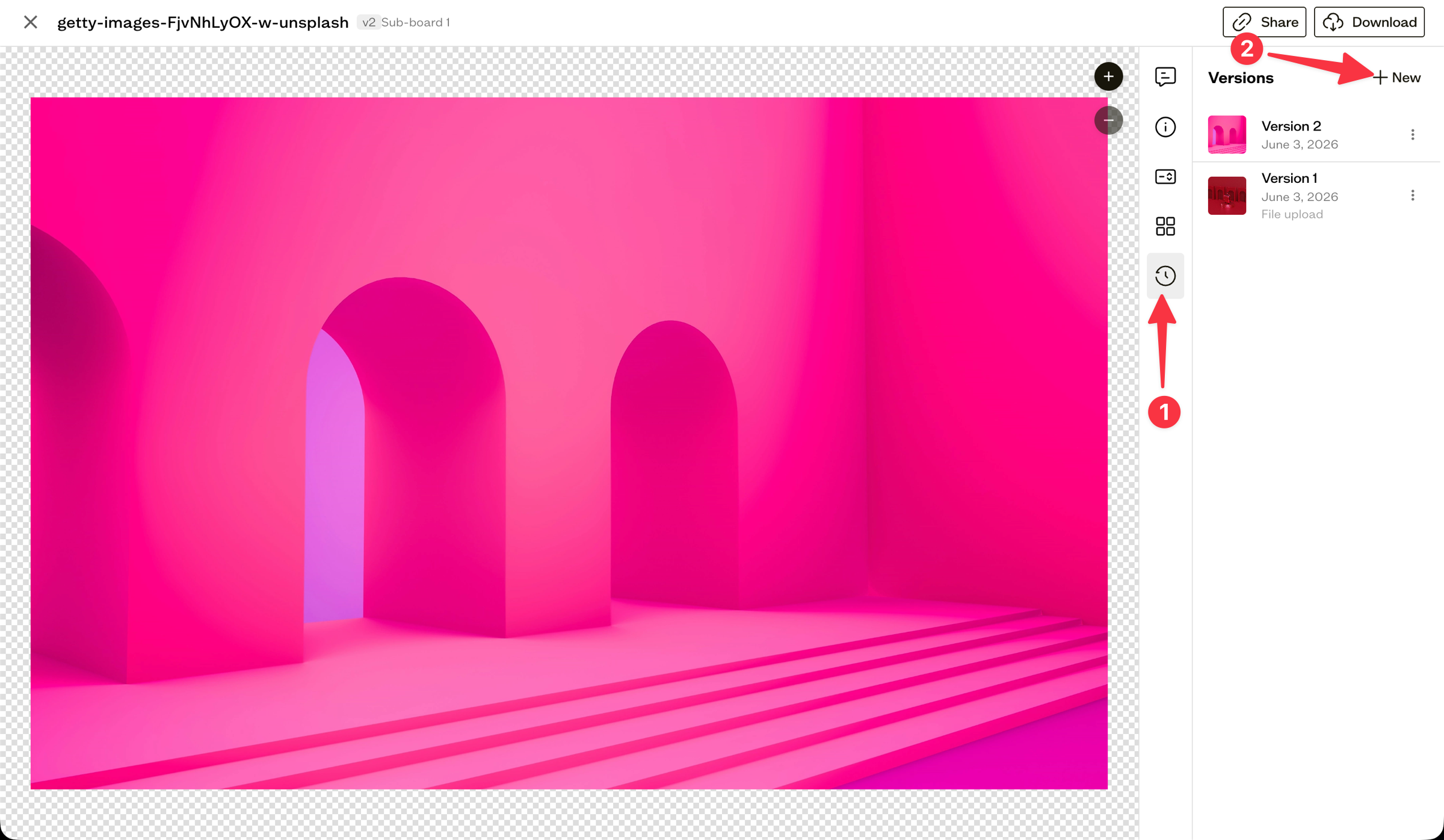
Choose the updated file. It becomes the current version, and the previous one moves into the version history. The new file does not need to be the same format as the original, though keeping formats consistent is recommended.
Preview a version
Previewing lets you look at an older version without replacing the current file. Open the Versions tab and select any version in the list. The main viewer switches to show that version, with a banner reading Previewing version {n}.
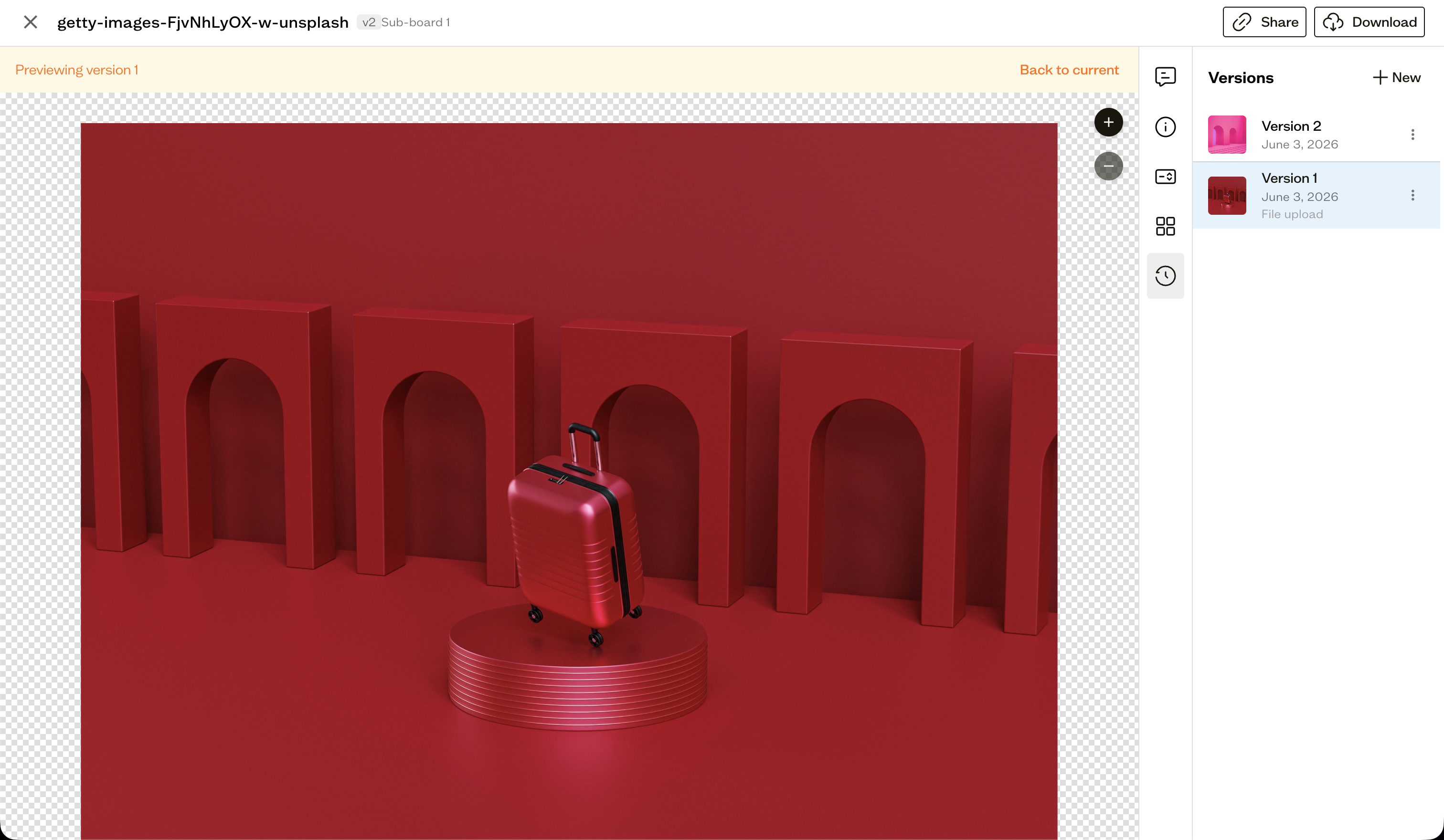
Select Back to current in the banner to return to the latest version. Previewing never changes which version is current.
Compare versions
Compare mode places two versions next to each other so you can see exactly what changed between revisions. From a version's ⋮ menu in the Versions tab, choose Compare. Comparison is available once an asset has at least two versions.
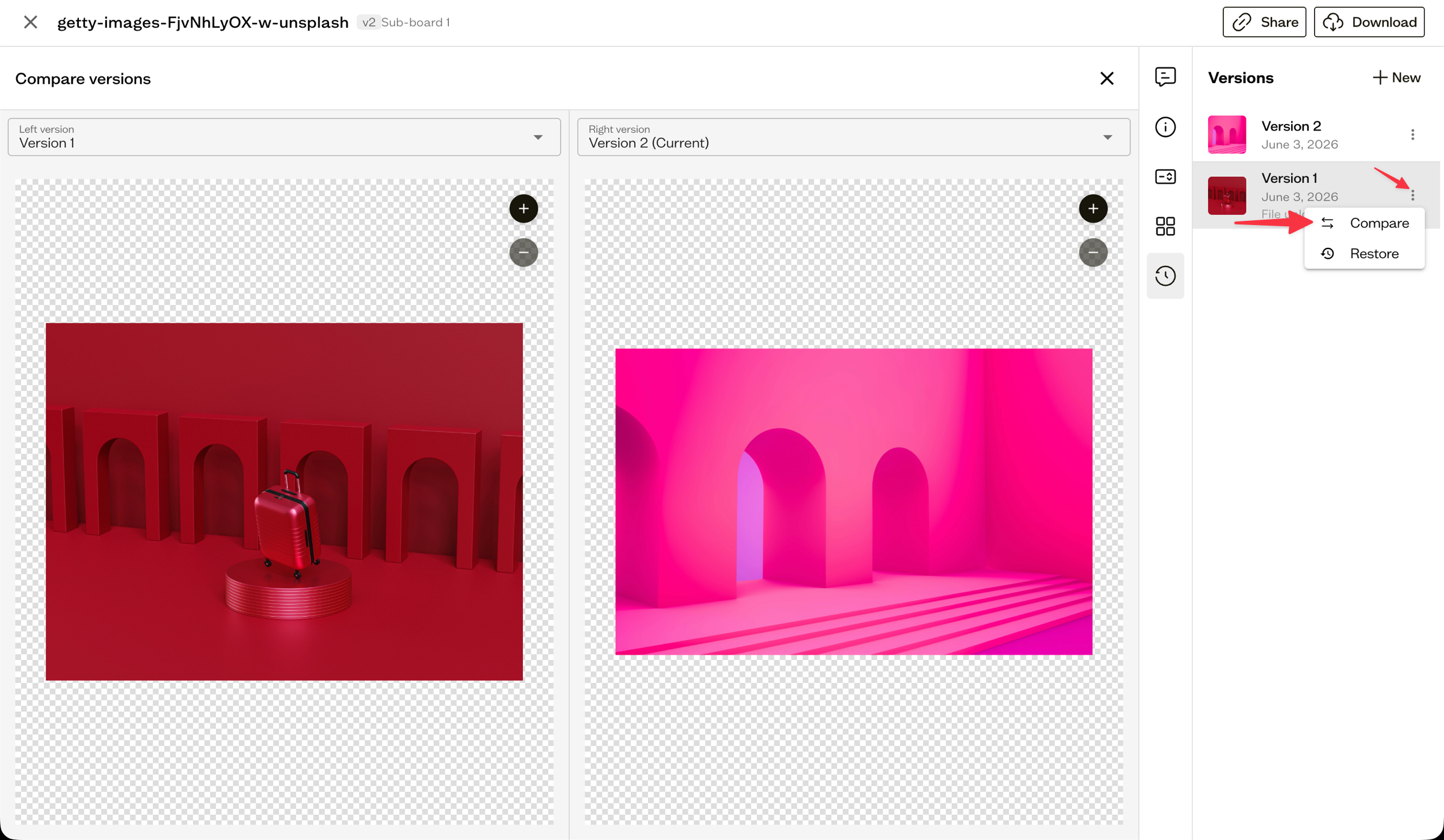
In the full-screen compare view, use the Left version and Right version dropdowns to pick which two versions to show. Close the view to return to the asset.
Restore a version
If you need to roll back, restoring makes an earlier version the current one. From the ⋮ menu of the version you want, choose Restore. Confirm in the dialog, which notes that the current version will be saved to history.
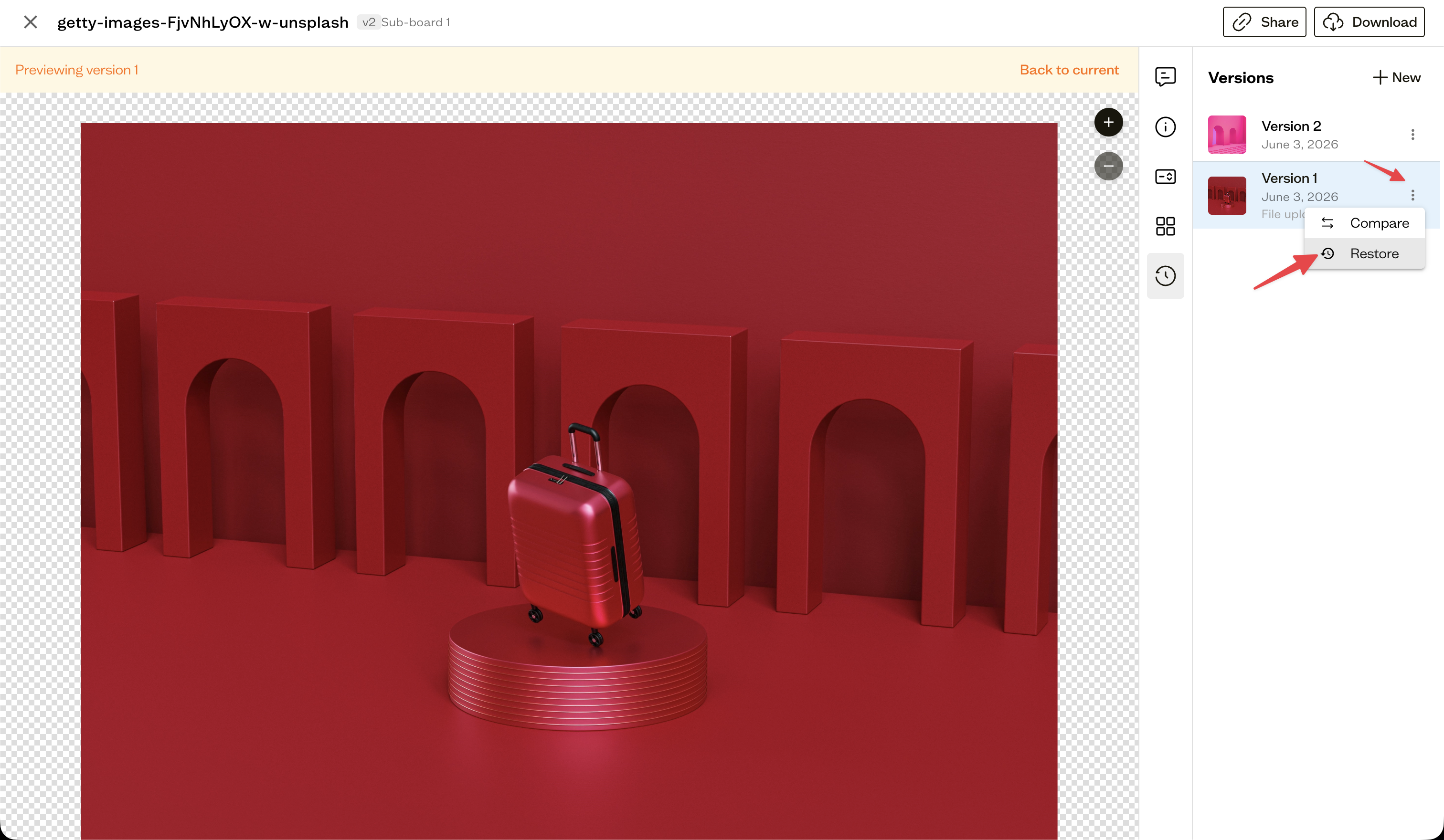
The version you replace is not deleted, it simply moves into the history, so nothing is ever lost. You can restore again at any time.
Next steps
Pair versioning with comments and approvals so reviewers always see the latest revision in context.