
Boards are the primary way you organize content in Baseline. Each board can hold assets, colors, and fonts, and can contain sub-boards for deeper structure.
Create a new board
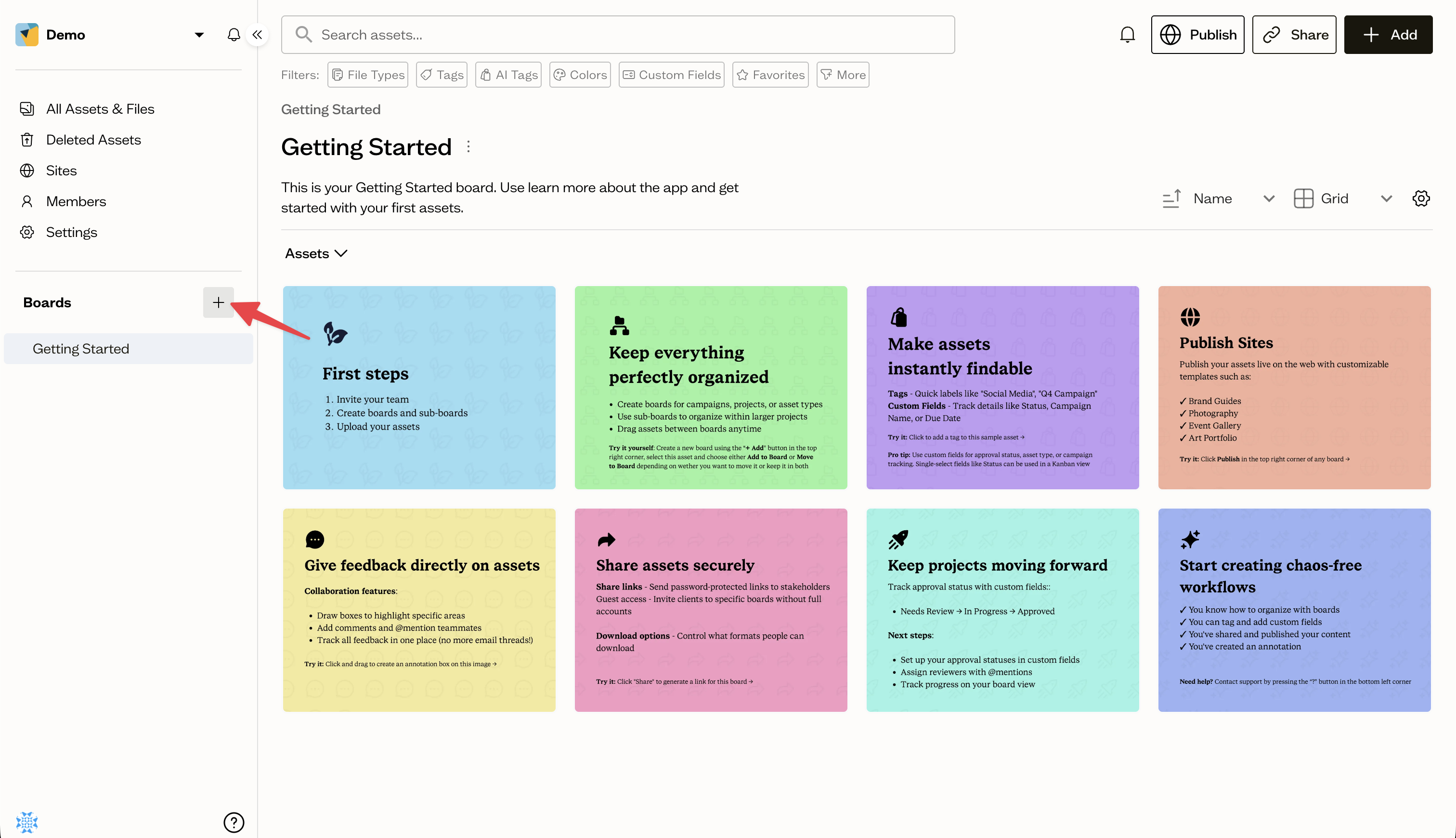
From your workspace home, open the boards panel in the left sidebar and select the plus button at the top of the list. Give your board a name and confirm.
Naming your board
Use clear, descriptive names that match how your team talks about projects, for example "Spring Campaign 2026" or "Logos". You can rename a board at any time.
Add a sub-board
There are two ways to create a nested board:
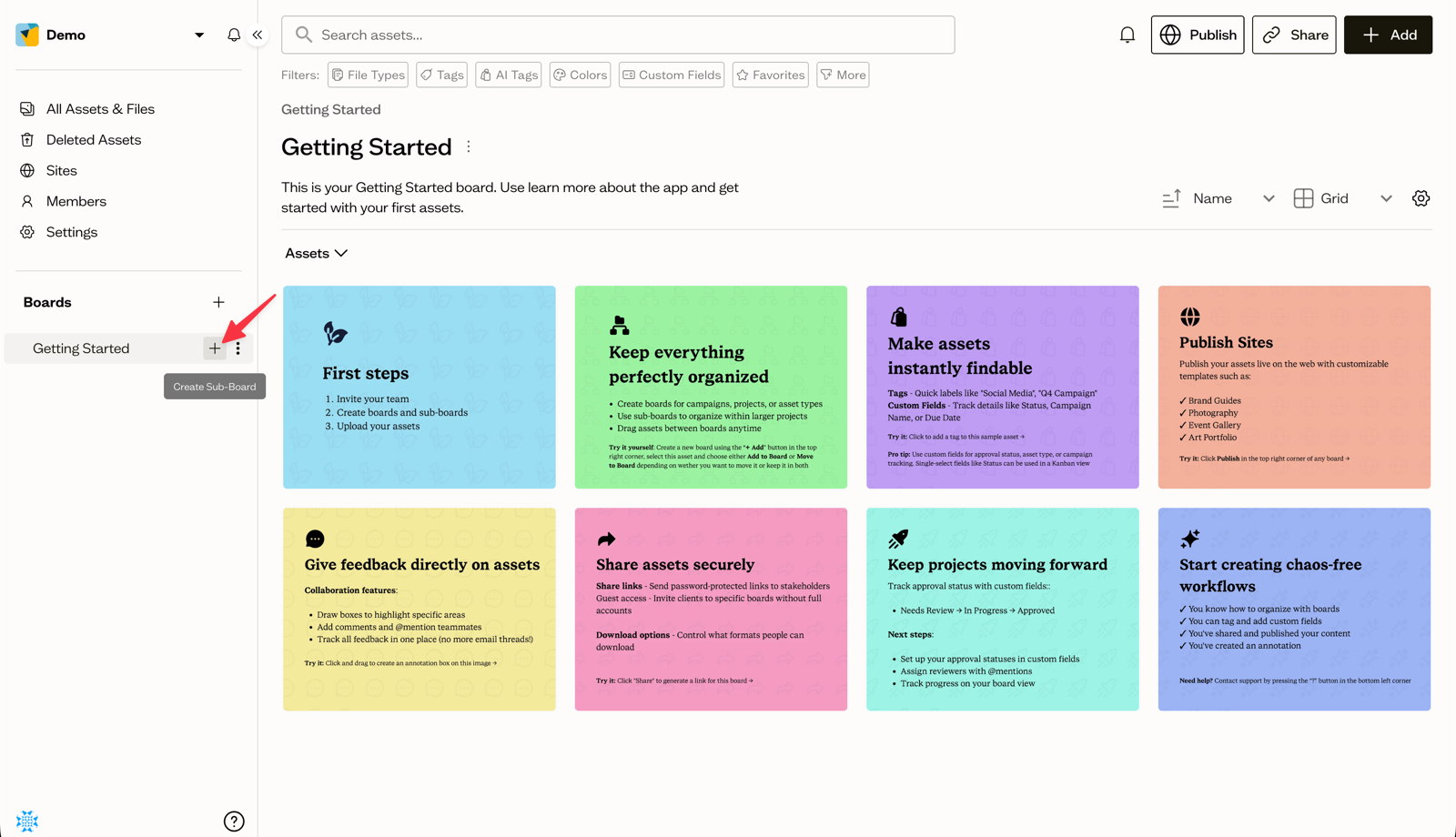
- Hover over an existing board in the tree and select the + icon
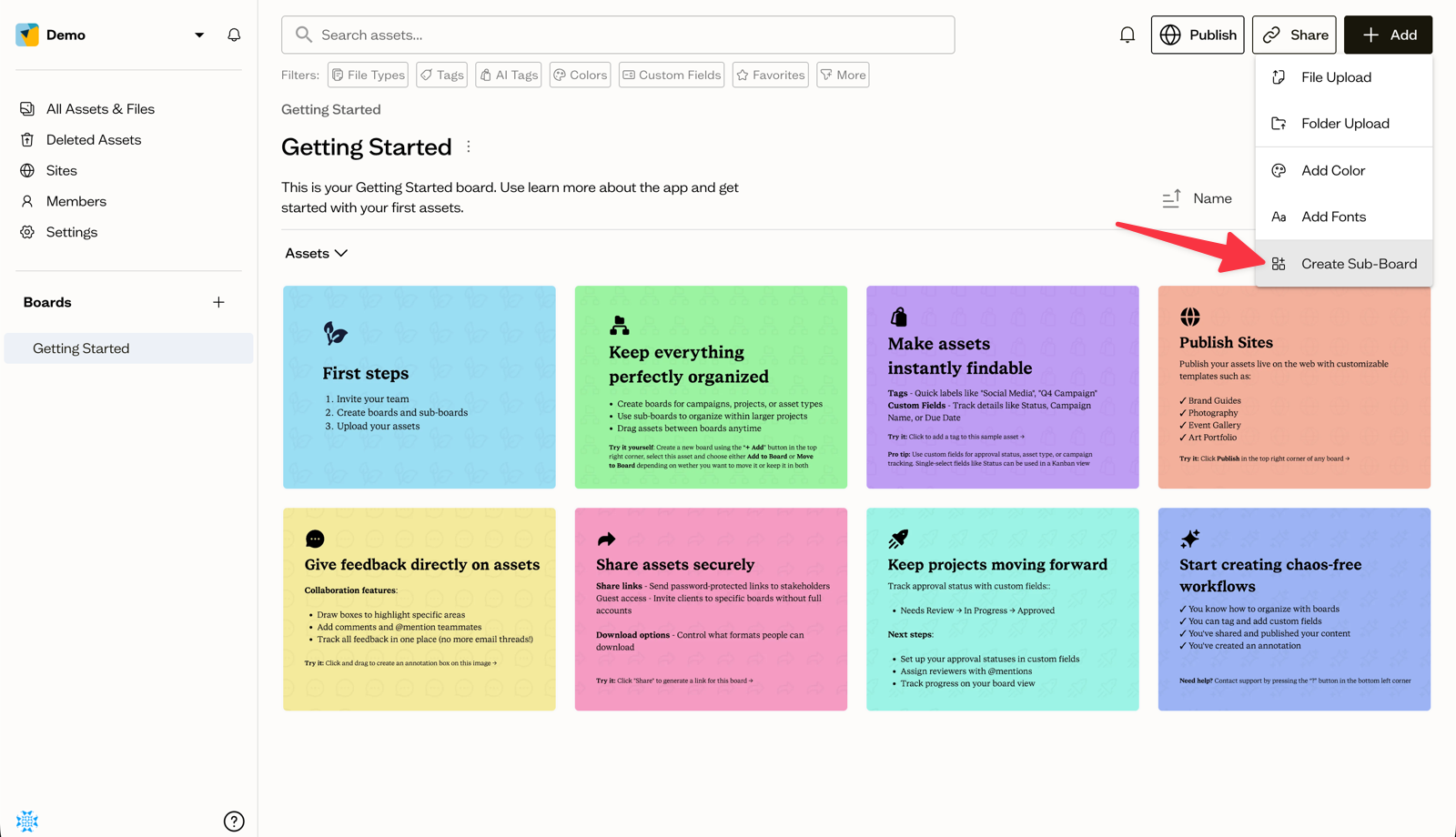
- Find the Add button in the top right corner when viewing a board and select Create Sub-Board
The new board appears indented underneath its parent and at the top of the page after navigating to a board.
Reordering and nesting
You can drag boards within the tree to reorder them or to nest one board inside another. The structure updates immediately for everyone in the workspace.
Next steps
With a board in place, you are ready to start adding content such as images, fonts, and colors.