You can download assets one at a time or in bulk.
Download a single asset
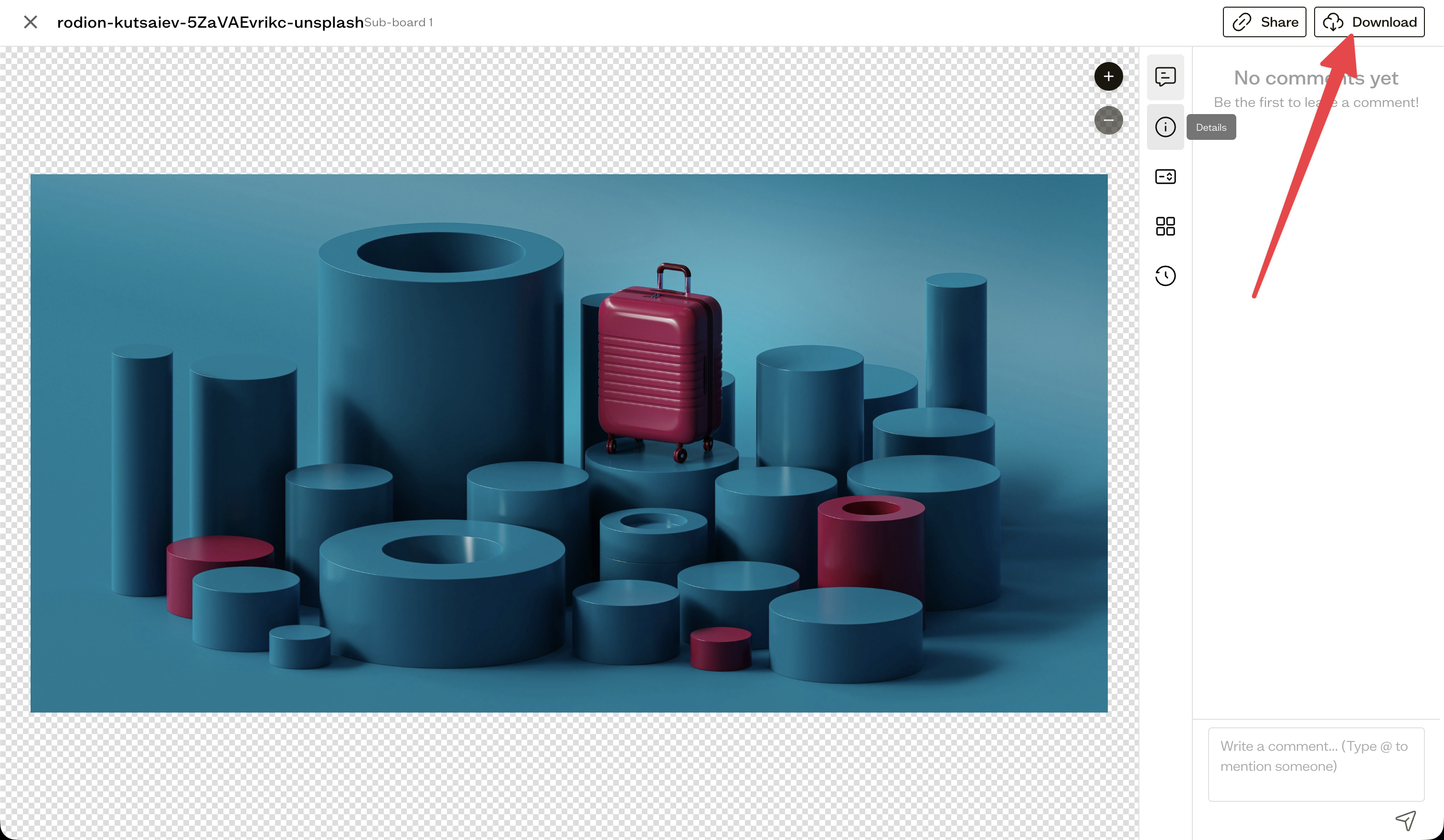
Open an asset and select Download in the viewer header, or choose Download from its right-click menu.
Download several assets
Select multiple items and use the download button in the bottom action bar. Multiple assets are packaged into a ZIP file. Downloading is one of several bulk actions.
Mixed selections and fonts
If your selection mixes file types, a Download Selection dialog lets you choose what to include. Note that Google Fonts are fetched from Google, uploaded fonts and other assets are bundled into the ZIP, and Typekit fonts cannot be downloaded but show their CSS usage info instead.
Next steps
If a download or upload does not behave as expected, see asset processing and troubleshooting.