
An asset can live on more than one board. Baseline gives you three distinct actions for managing where assets appear.
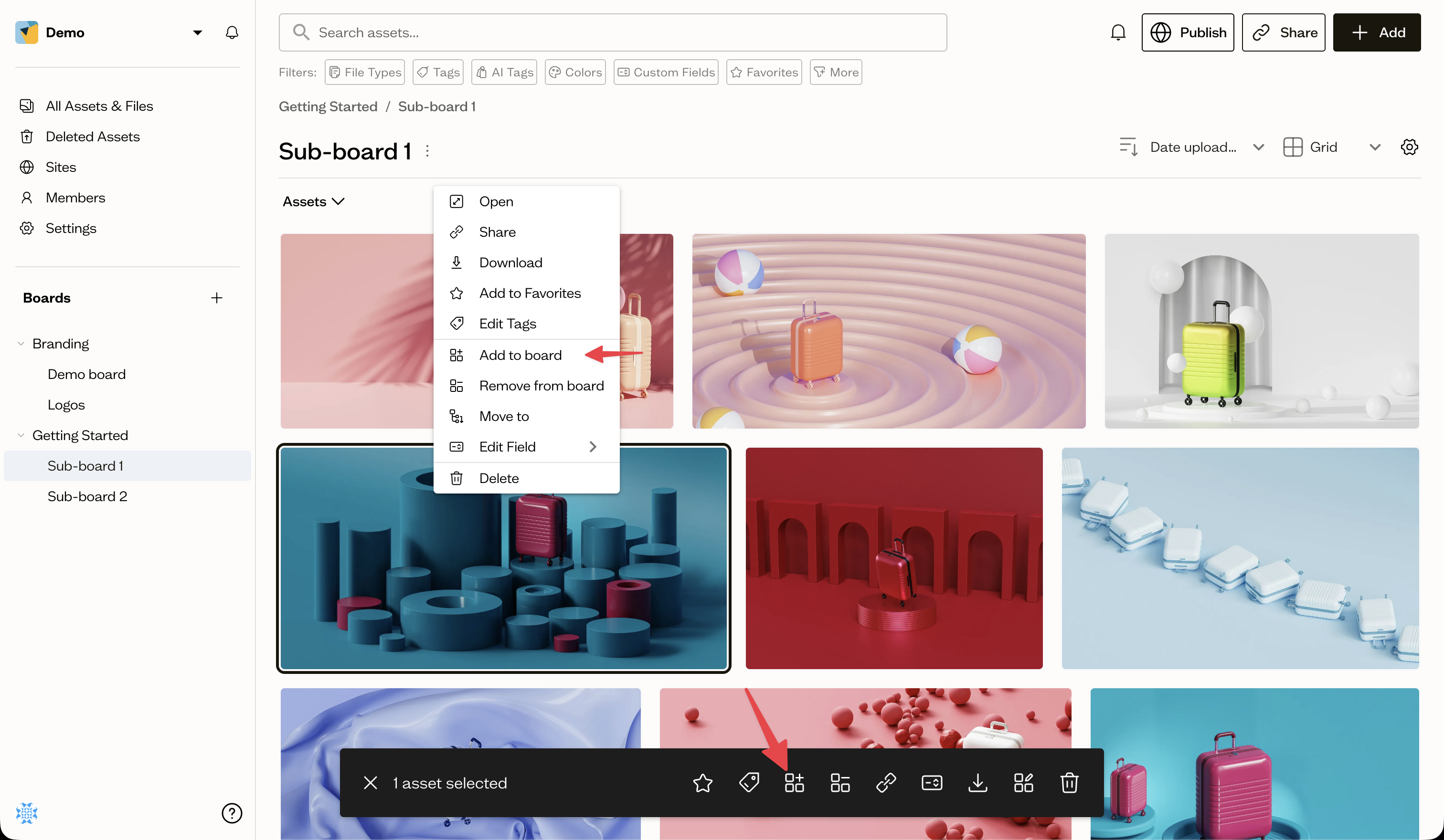
Add to a board
Add to Board places the asset on another board while keeping it on the boards it already belongs to. Choose it from the asset's menu or the bottom action bar, pick a destination, and select Add.
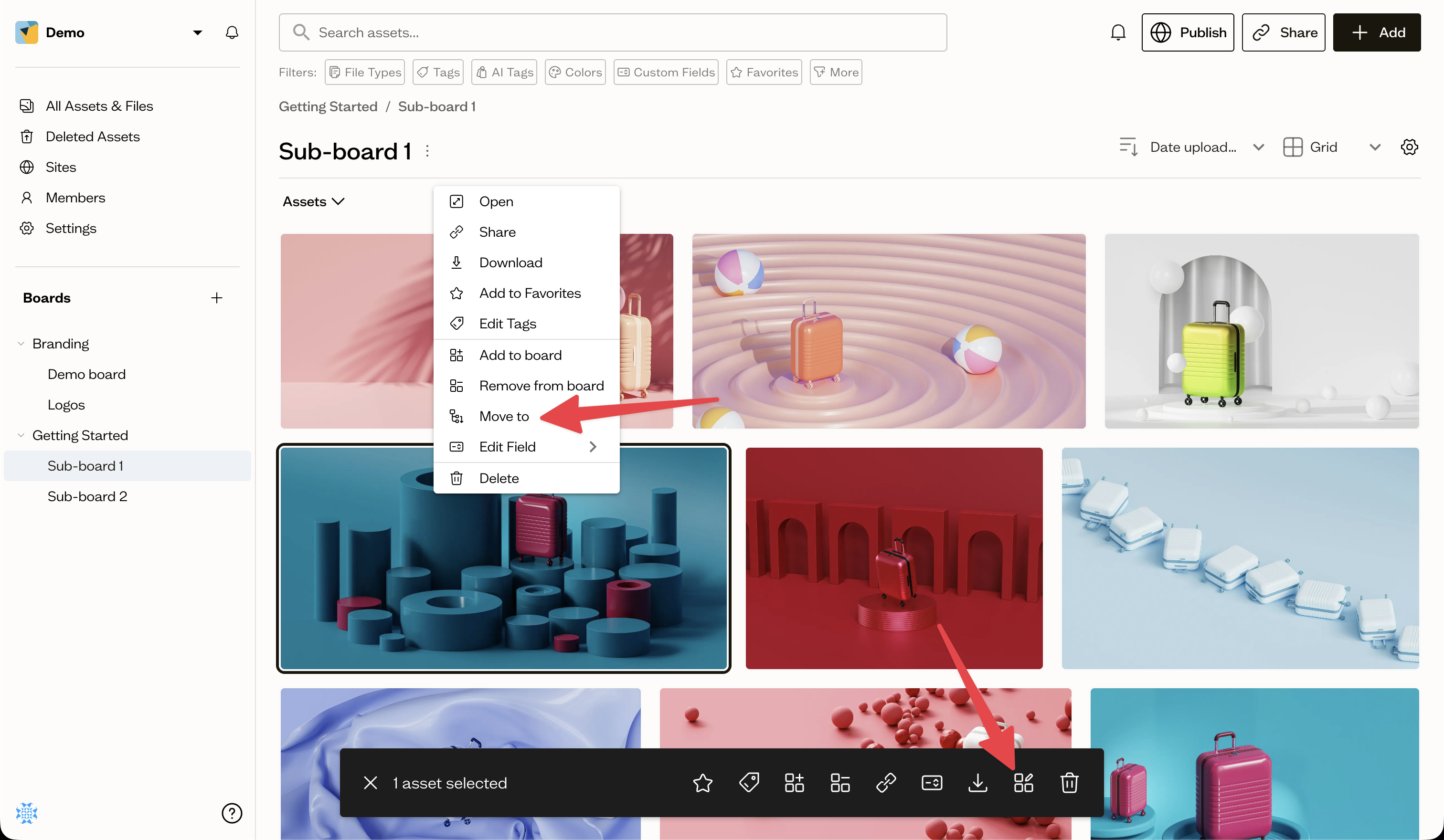
Move to a board
Move to removes the asset from all its current boards and places it only on the destination you choose.
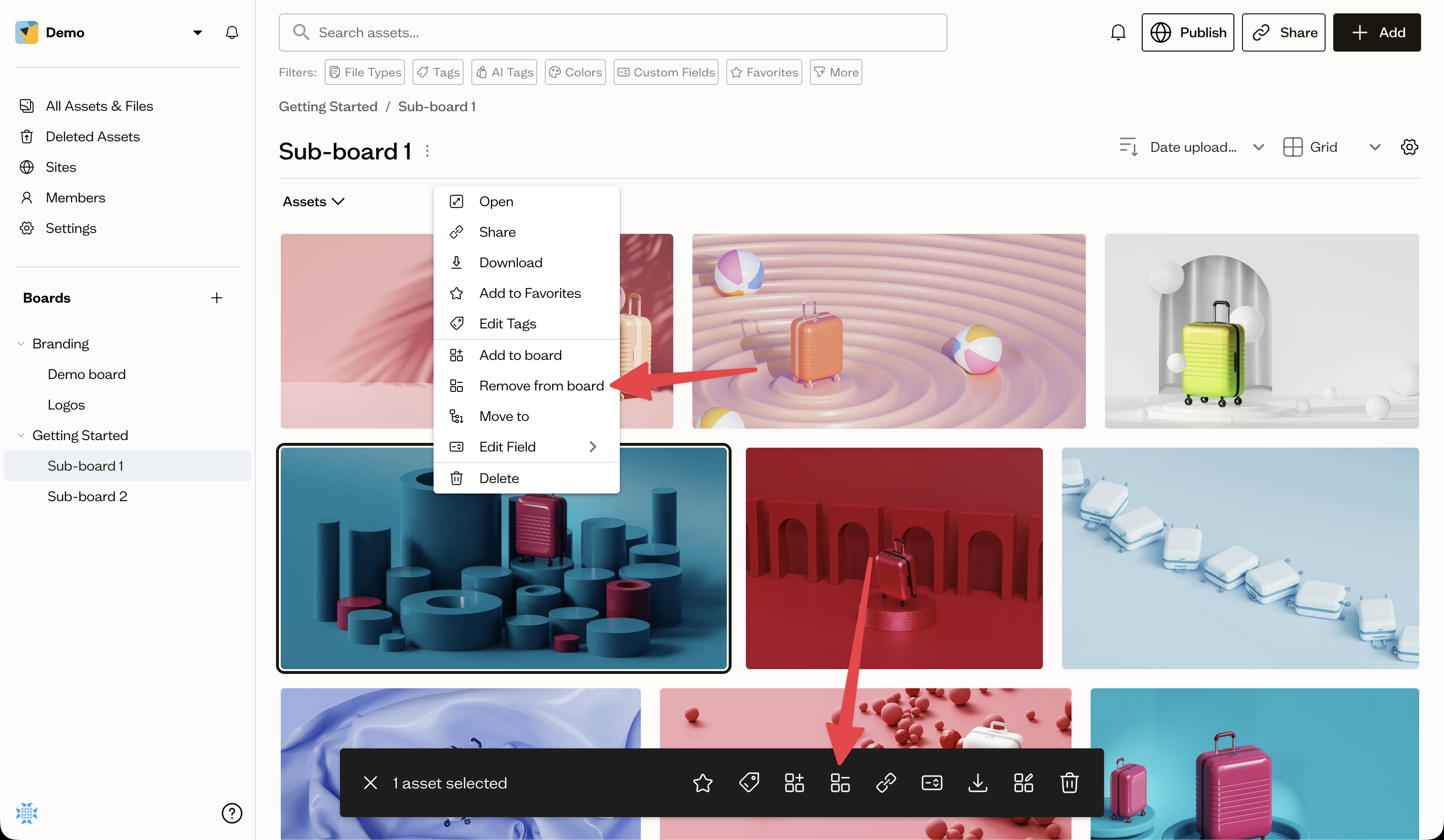
Remove from a board
Remove from Board takes the asset off the current board only. The asset itself is not deleted and remains on any other boards it belongs to.
Do it in bulk
Select several assets first, and Add to Board, Move to, and Remove from Board all apply to the whole selection from the bottom action bar. See bulk actions for more.
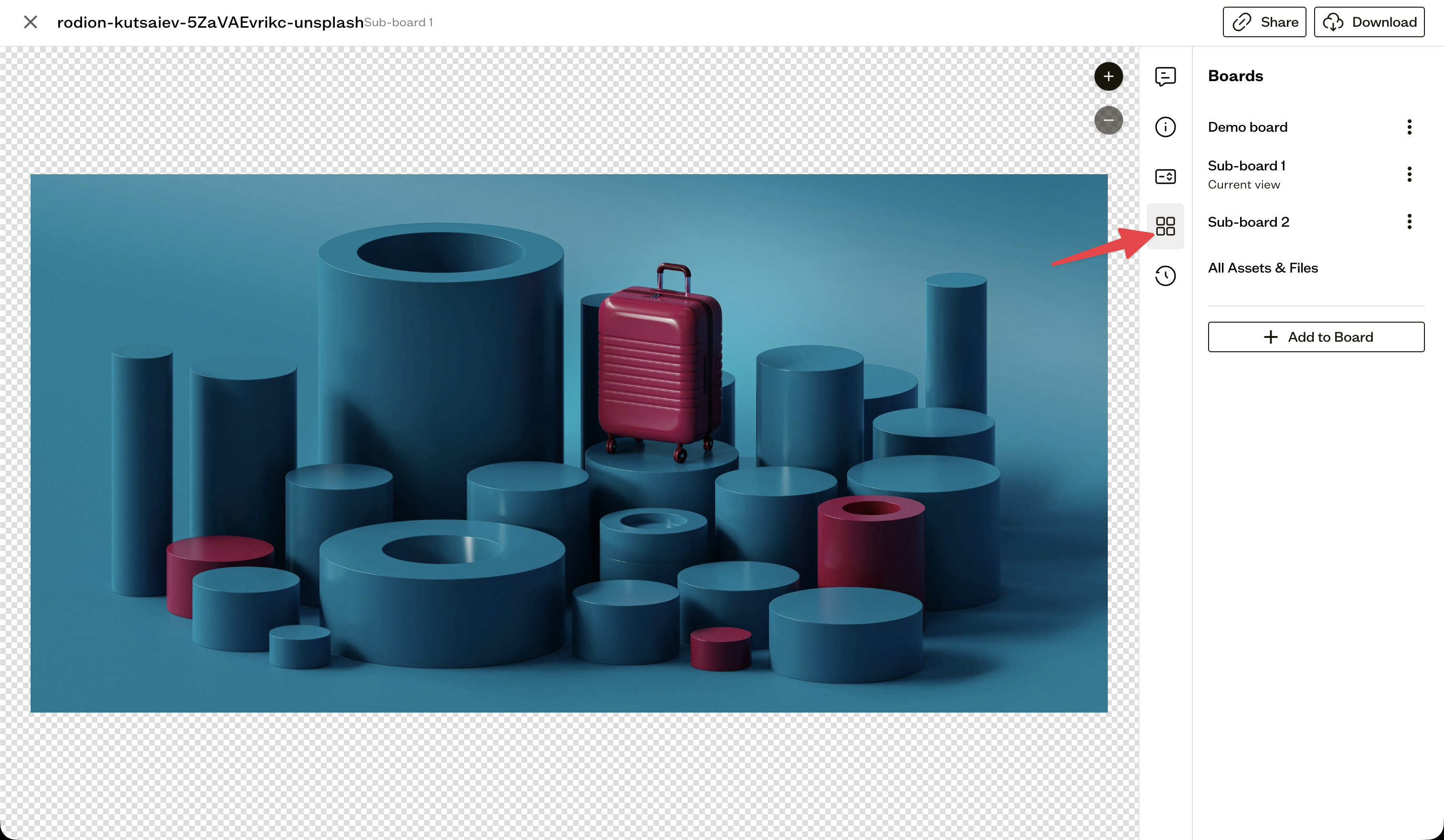
See where an asset lives
The asset viewer's Boards tab lists every board an asset belongs to, and lets you add or remove board memberships from one place.
Next steps
Learn how downloading works for single assets and bulk selections.