When you no longer need a board, you can delete it. Deleted boards and assets can be recovered for a limited time.
Delete a board
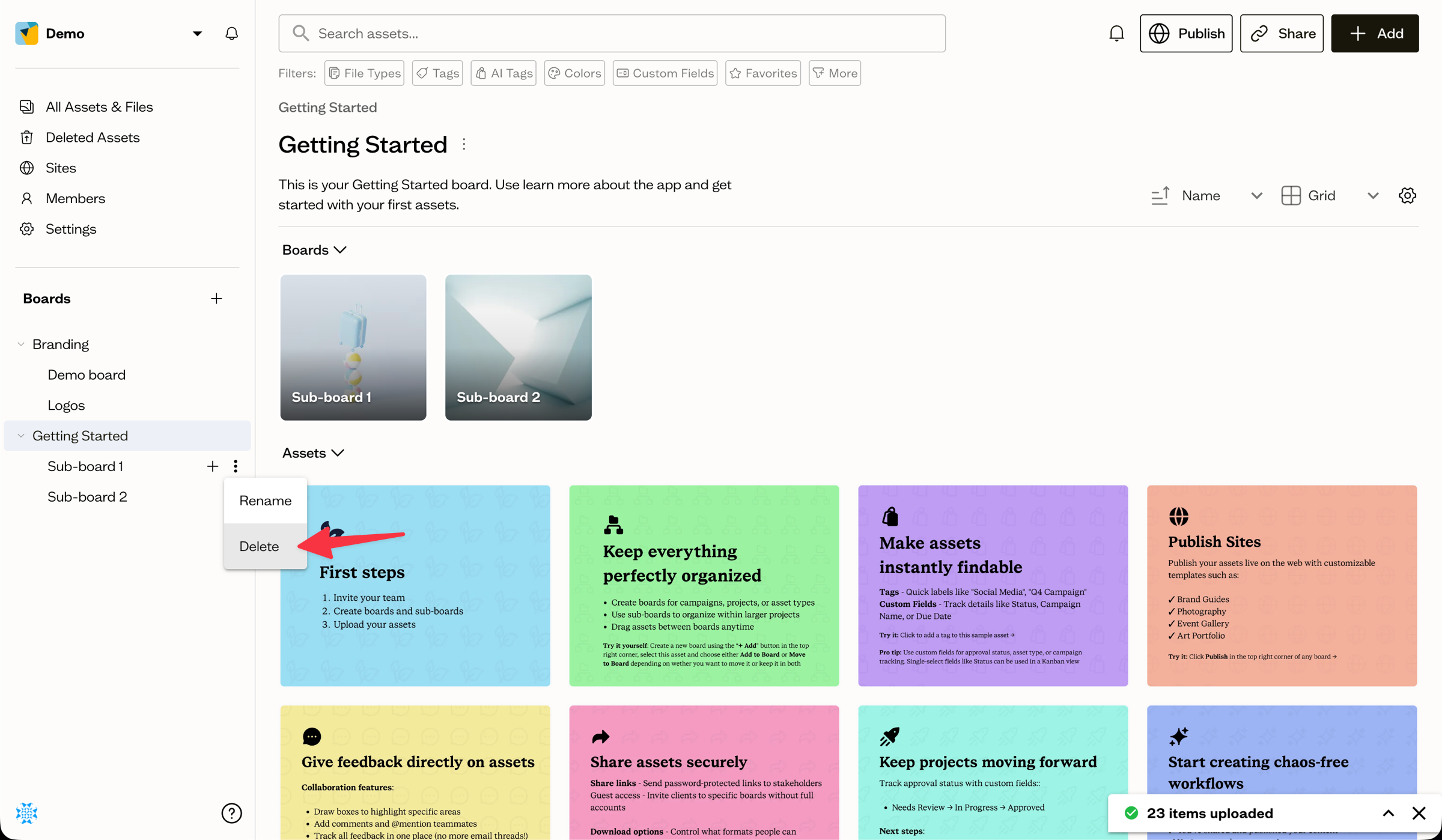
In the sidebar tree, open a board's ⋮ menu and choose Delete. A confirmation dialog explains what will happen.
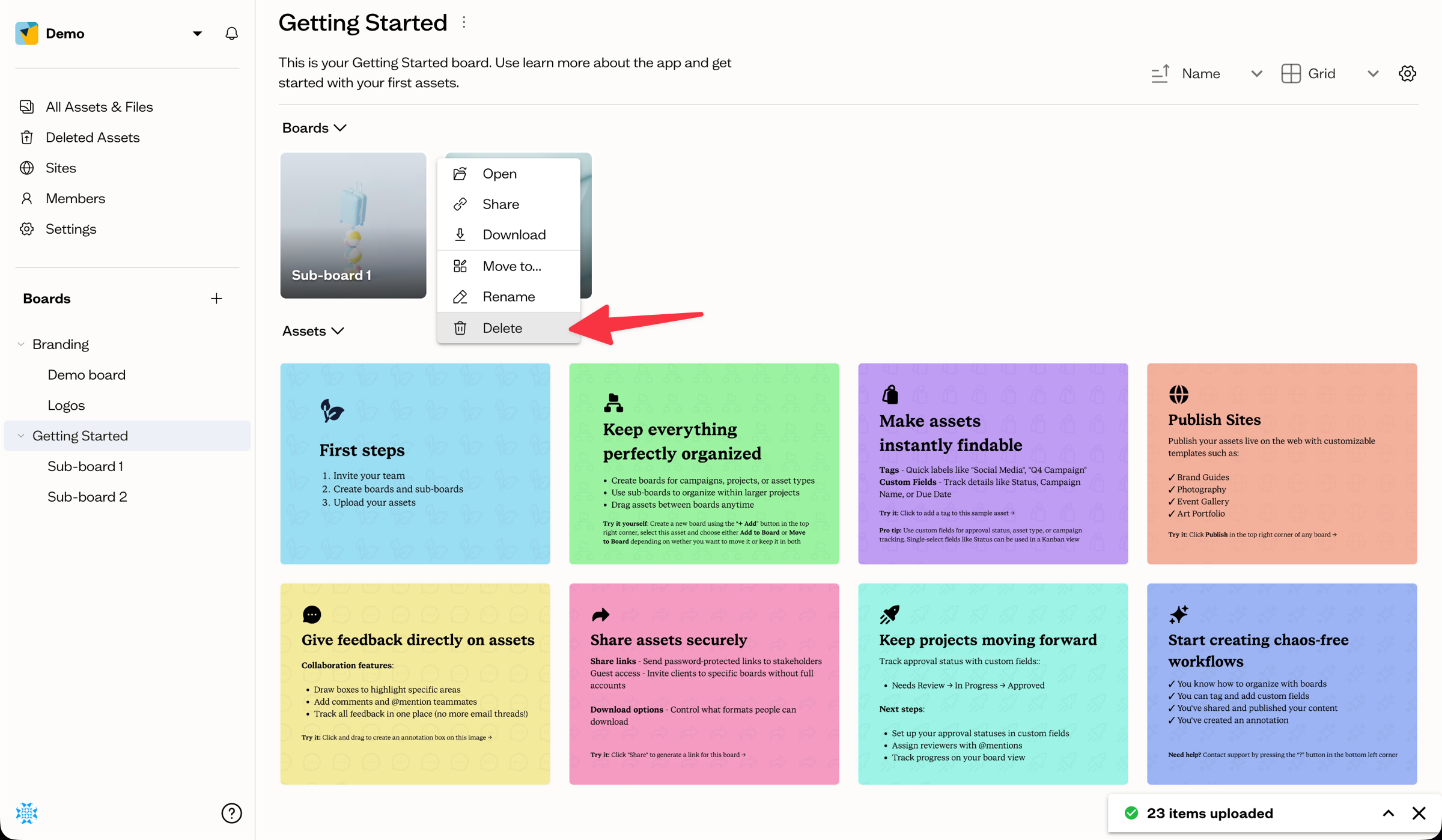
Alternatively, you can right-click on a board to open the context menu and select Delete from there.
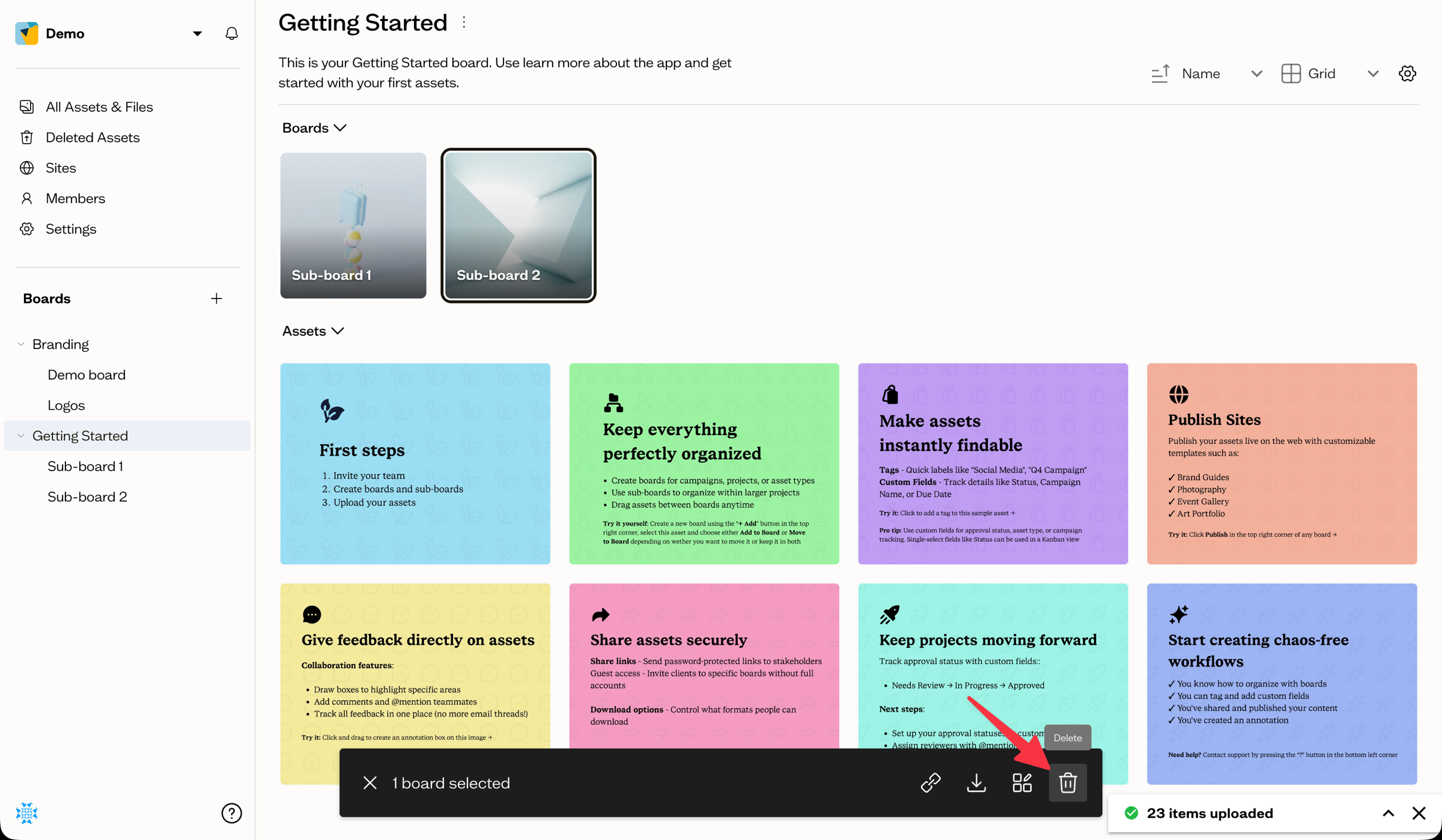
You can also select one or more boards, then open the Batch menu at the top and choose Delete to remove them at once.
What happens to its contents
When you delete a board:
- Its sub-boards are deleted too.
- Assets that live only in this board are deleted.
- Assets that also exist on other boards stay where they are.
Recovering a deleted board
Deleted boards and assets move to Recently Deleted, where you can restore them within your plan's recovery window.
Next steps
See recently deleted to recover something, or learn how assets can belong to more than one board.