
Boards can be viewed two ways: Grid for browsing thumbnails, and Kanban for working through a status-based workflow.
Switch view modes
Use the view switcher on the right of the board toolbar to toggle between Grid and Kanban.
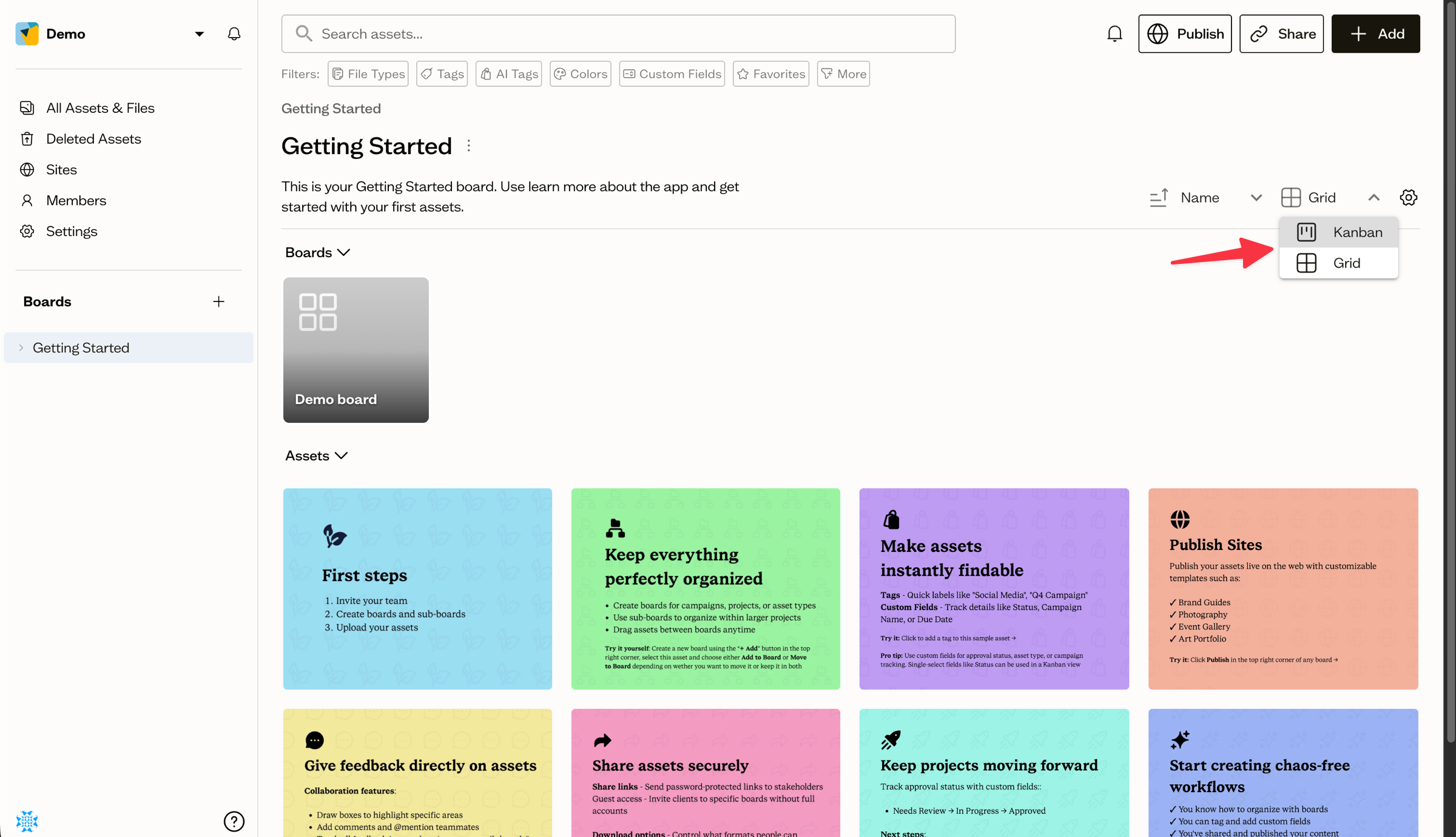
Grid view
Grid is the default. It lays out your assets as thumbnails. To change how large they appear, open the Settings (gear) menu and pick a Thumbnail Size: Small, Medium, or Large.
Kanban view
Kanban arranges assets into columns based on a single-select custom field, so you can drag items between stages. It requires at least one single-select field in your workspace.
Saving view modes

When you change the view mode or sorting options, a Save View button appears. Clicking this lets you save the current board view (including sorting and view mode) as the default for everyone. This is especially useful if you want clients or team members to always see a specific layout—like always opening in Kanban for workflow boards, or a particular sort order.
You can update the saved view anytime by switching modes or sorting and clicking Save View again.
Next steps
Set up sorting, or learn how the Kanban workflow uses your custom fields to organize columns.