
Search is the fastest way to find any asset. Start typing in the search bar and Baseline matches against file names, descriptions, tags, and AI-generated tags.
Run a basic search
Type one or more keywords into the search bar and press Enter. Results are ranked by relevance.
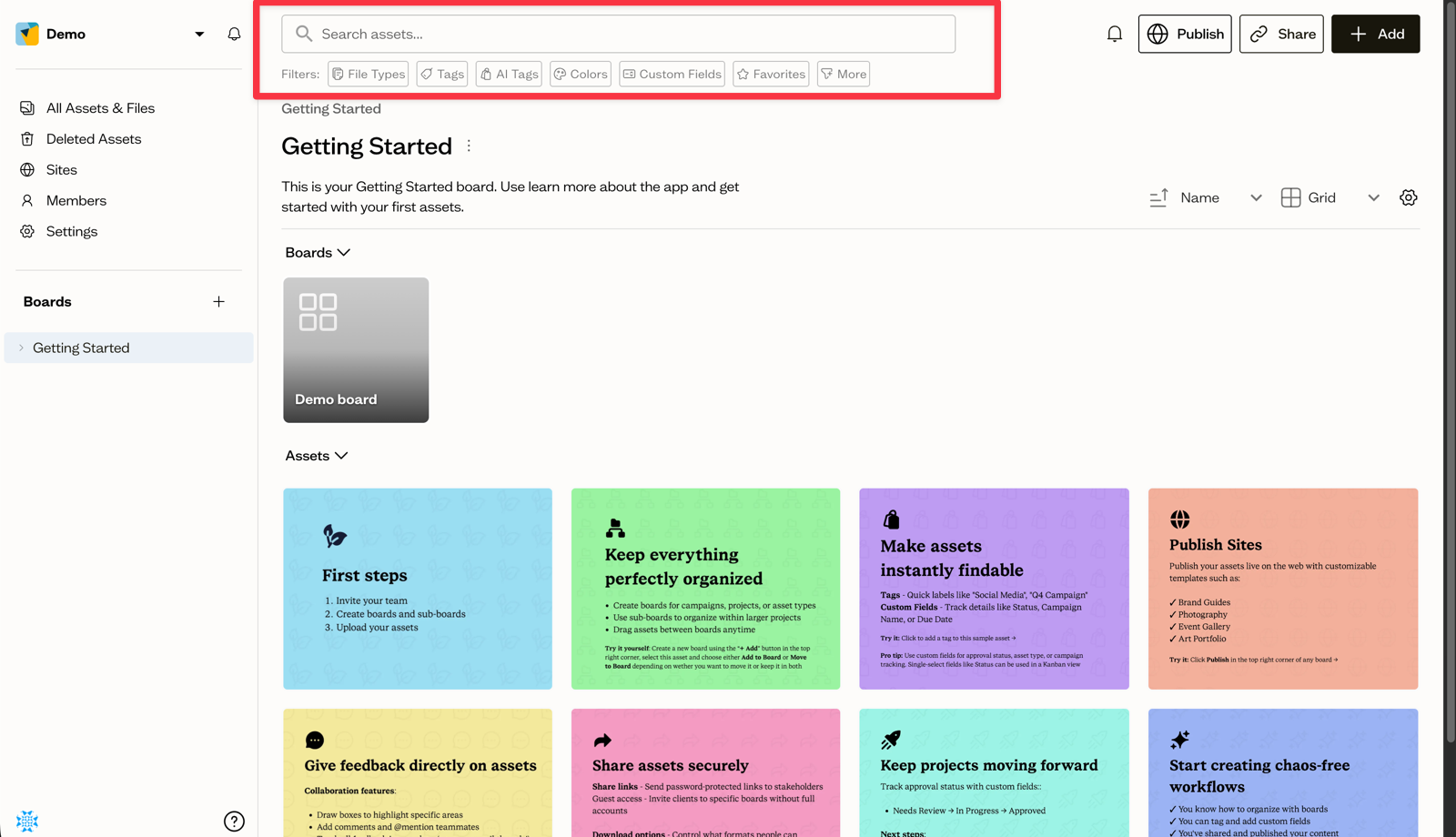
Search scope
Search scope follows where you are. On a specific board, search covers that board only. On the All Assets & Files view, search covers your entire workspace.
Refine with filters
After searching, add filter chips to narrow the results.
Filter by file type
Limit results to images, PDFs, fonts, or other file types with a single click.
Filter by tags and colors
Combine your keyword with tag filters or color filters to zero in on exactly the asset you need.
Save your view
To keep a board's layout, sort order, and grouping, use a saved view. Saving searches for reuse is coming soon.
Next steps
Explore advanced filters to search by EXIF metadata such as camera, ISO, and aperture.