
Workspace settings let Admins manage the workspace itself, separate from your personal account settings.
Open workspace settings
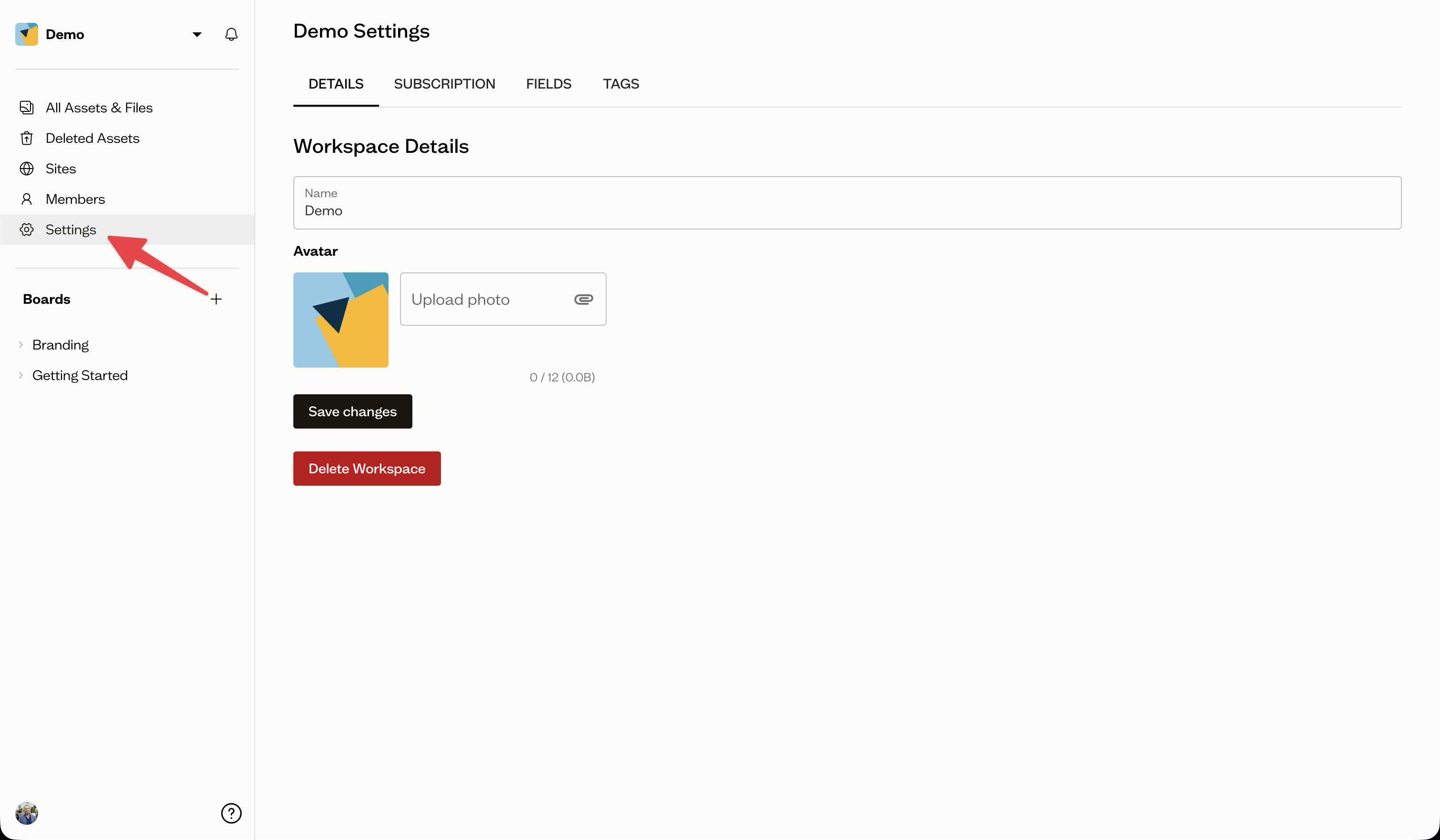
Go to Settings for your workspace. The Details tab covers the workspace name and avatar, while other tabs handle subscription, fields, and tags.
Update name and avatar
On the Details tab, change the workspace name and upload an avatar, then save. These appear in the workspace switcher and across the app.
Delete the workspace
The Details tab also includes a delete option. To confirm, you type the workspace name. Deleting a workspace removes its content, so use this with care.
Permissions
Only Admins can change workspace settings. Other members see them as read-only.
Next steps
Manage your plan and usage from the subscription tab in billing and plans.