
Client asks for "the latest logo." You check three places: the email thread from March, the Dropbox folder someone renamed, and a Slack DM with an attachment that may or may not be the final version. None of this is a portal, it's a scavenger hunt you're running for every client, every time.
A client portal fixes this: one place where a specific client sees their assets, and only their assets, without an account setup process that makes them feel like they're onboarding to enterprise software. This guide covers what that actually looks like in Baseline, the two ways to give a client access depending on the relationship, and why bolting a generic file-sharing tool onto your DAM is worse than not having one.
What Is a Client Portal for an Agency?
A client portal is a scoped, external-facing view into one client's assets: their logos, brand files, campaign deliverables, whatever your agency manages for them, without exposing your internal workspace or any other client's materials. For an agency managing multiple accounts, it's the difference between "here's a folder" and "here's your specific, organized space."
The features that actually matter for this: strict separation between clients, no account friction for the client, and the assets being the same ones your team already works with, not a synced copy that drifts out of date.
Two Ways to Give a Client Portal Access
Most tools force one model. Baseline gives you both, because "client portal" means different things depending on the relationship.
Share Links: Quick, No Account Needed
A share link works for a single asset or an entire board, and anyone with the link can view it without creating a Baseline account. Turn on password protection for sensitive work, and toggle the link off the moment access should end.
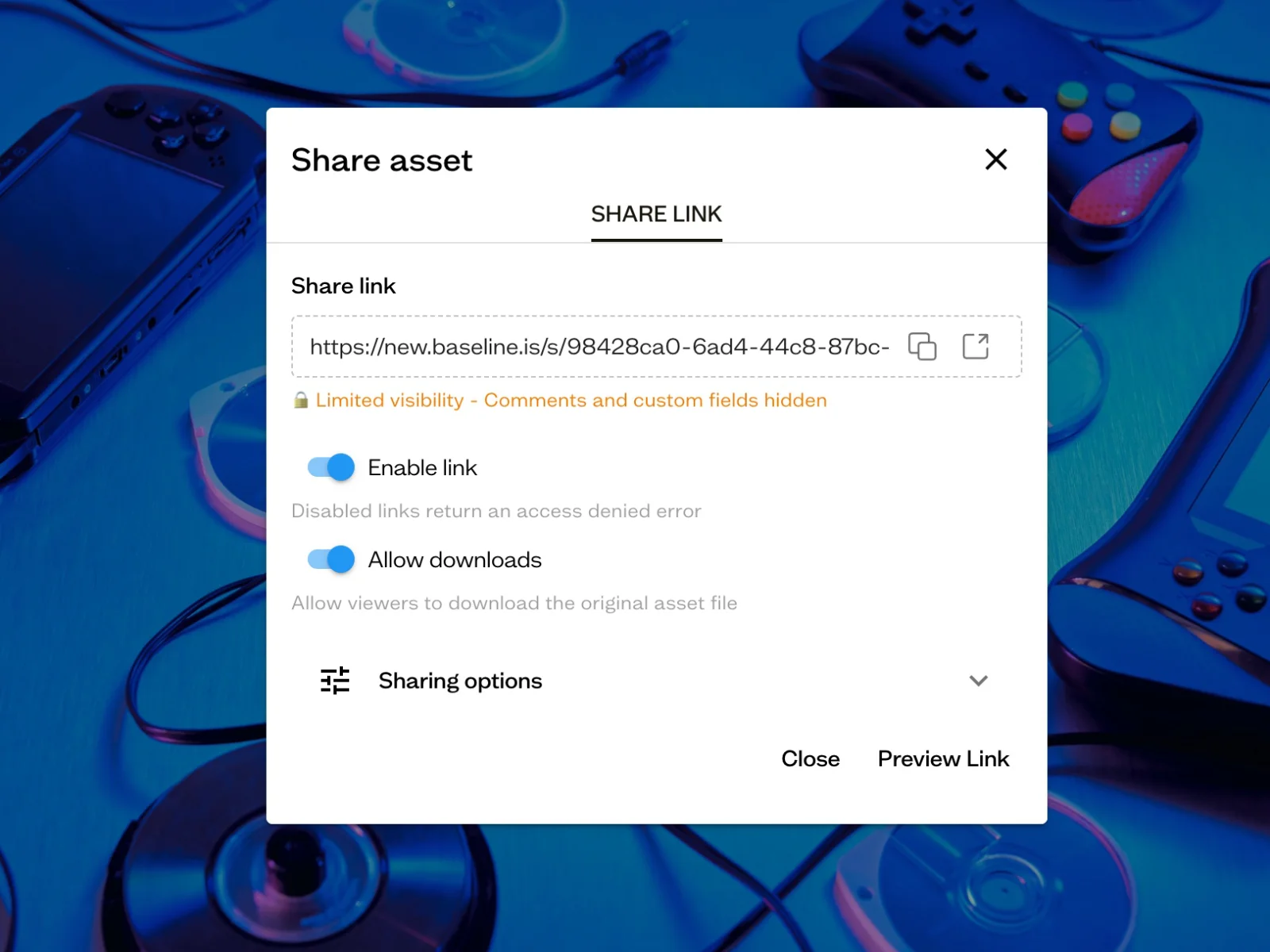
Use this when: you're delivering a finished campaign, sending a one-off asset for approval, or the client relationship doesn't need ongoing back-and-forth in the platform itself.
Board Guests: Ongoing, Signed-In Access
Inviting someone as a board guest gives them signed-in access scoped to one board and its sub-boards, as either an Editor (can upload and organize) or a Commenter (can view and leave feedback). They see that board and nothing else in your workspace, no other client, no internal boards.
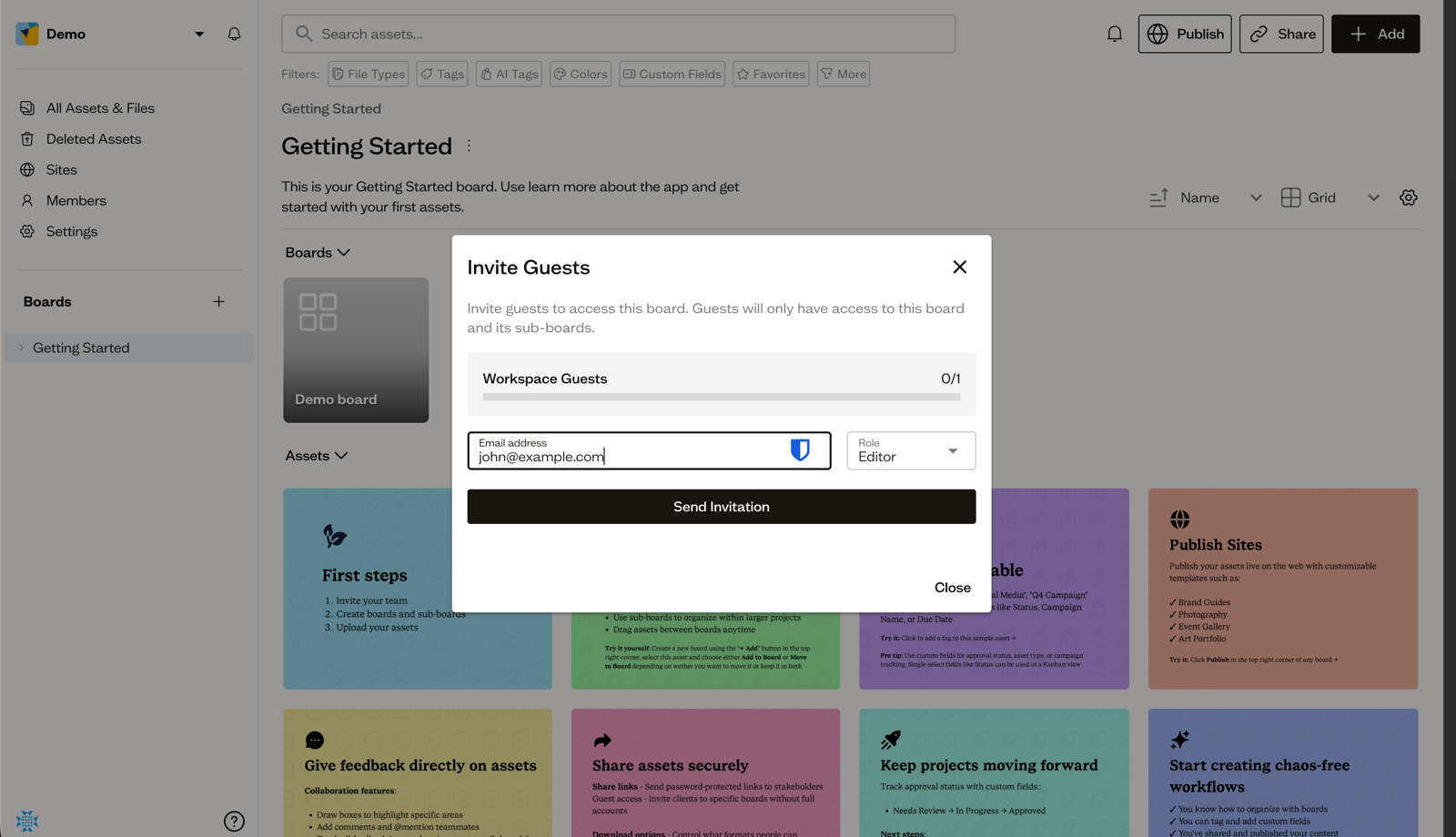
A standing relationship, not a one-time drop, is the case for this: a client who checks in regularly, or leaves feedback on work as it develops, without you re-sharing a link every time something new gets added.
Neither option requires the client to navigate a full project management tool built for your team, not them. They see a board, not a product.
What Clients Can (and Can't) Do
This is where "client portal" claims from most tools fall apart in practice. Here's what's actually scoped in Baseline:
- Guests only see their invited board and its sub-boards. Not your workspace, not another client's board, not your internal drafts.
- Editor guests can upload files, organize them, and comment, useful for clients actively contributing assets, not just reviewing them.
- Commenter guests can view and leave feedback but can't upload or reorganize, the right default for most client relationships.
- Share link permissions are set per link: view-only, or with download and commenting enabled, decided when you create it.
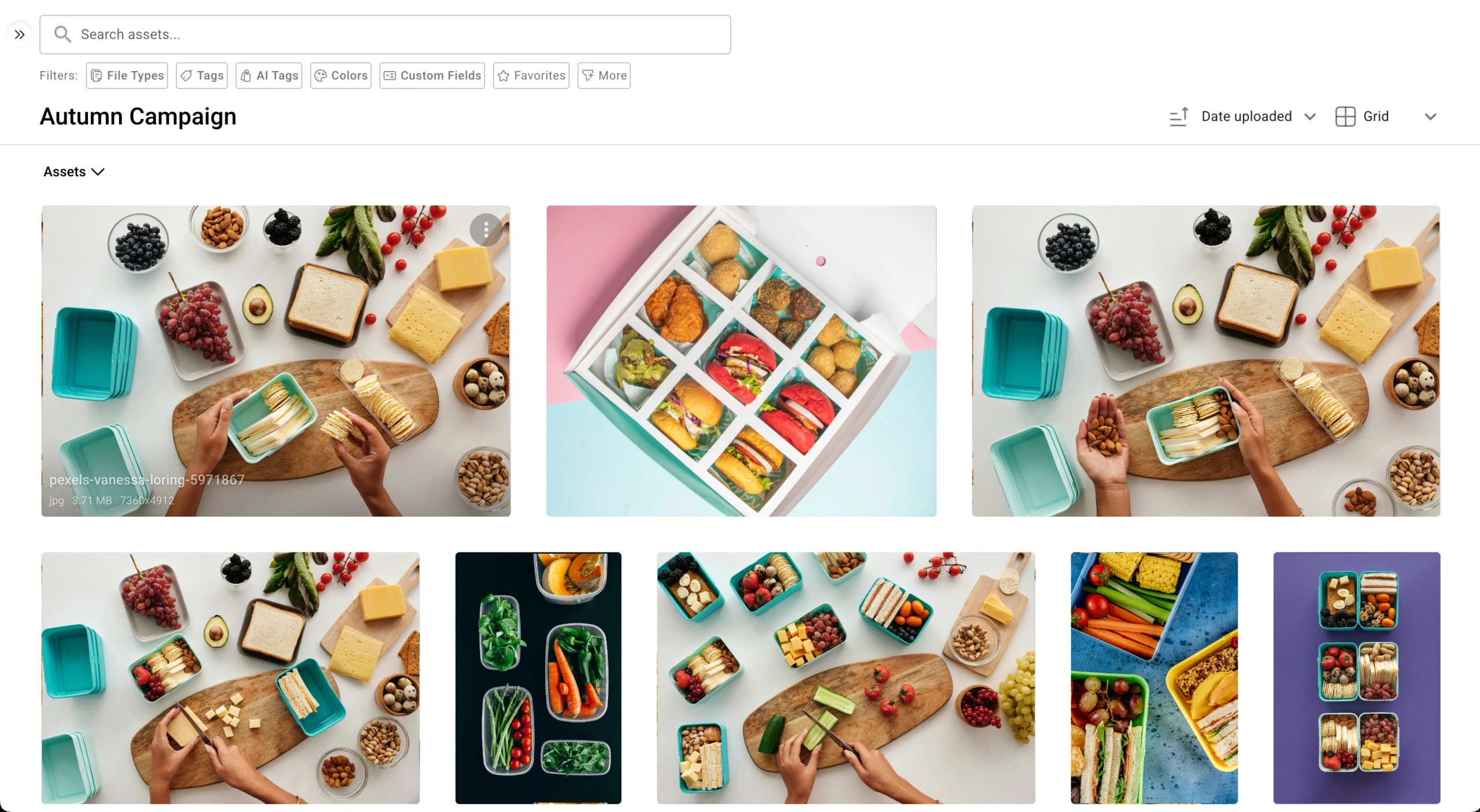
This is the same permission model your team already uses internally (asset, board, and group-level permissions), just scoped down for one external person instead of granted broadly.
Why Not Just Use Dropbox or a Project Tool's File Tab?
| Approach | Client sees only their assets | No account friction | Assets stay current | Feedback in context |
|---|---|---|---|---|
| Email attachments | ⚠️ Only what you remember to send | ✅ Yes | ❌ Version chaos | ❌ Buried in threads |
| Dropbox / Google Drive folder | ⚠️ Depends on folder discipline | ⚠️ Often requires sign-in | ⚠️ Manual sync | ❌ No annotation |
| Generic PM tool (Asana, Monday) file tab | ⚠️ Files live alongside tasks, not organized as assets | ⚠️ Usually requires an account | ⚠️ Not asset-aware | ⚠️ Task comments, not visual annotation |
| Baseline | ✅ Board-scoped, strict separation | ✅ Share links need no account | ✅ Same assets your team works with | ✅ Comments and annotations on the asset itself |
The pattern across the alternatives: they're built for tasks or generic files, and asset delivery is a side feature. A logo file in a Dropbox folder isn't tagged, versioned, or connected to anything (why file sharing isn't asset management). The same logo in Baseline is the file your team is actively using, viewable by the client the moment it's ready, not exported and re-uploaded somewhere else.
Who This Is For
Creative and marketing agencies managing multiple clients who each need their own scoped view into their assets, without your internal workspace or other clients' work leaking through.
Agencies billing for ongoing work (retainers, campaigns in progress) where clients need to check in and comment regularly, not just receive a final delivery.
Freelancers and small studios who need a professional-feeling way to hand off work without asking a client to learn a new tool.
Pricing
Board guest access is available on every paid plan, with limits that scale as you grow:
- Starter ($59/month, $588/year billed annually): Up to 10 board guests, 250 GB storage, up to 300 boards
- Team ($199/month, $2,028/year billed annually): Up to 50 board guests, 1 TB storage, version history
- Business ($399/month, $4,188/year billed annually): Unlimited board guests, 3 TB storage, priority support
- Enterprise (custom pricing): Unlimited everything, SSO, dedicated account manager
Share links are available on every plan and don't count against your guest limits, since recipients don't need an account. See full pricing for the complete breakdown.
Frequently Asked Questions
What is a client portal for an agency?
A client portal is a scoped, external-facing space where one client can access their specific assets, deliverables, or project materials, without seeing your internal workspace or any other client's work. For agencies, it replaces email attachments, shared Dropbox folders, and generic project tool file tabs with something purpose-built for asset delivery.
Does a client need to create an account to view their portal?
Not necessarily. Share links work for anyone with the link, no account required. Board guest access requires signing in, but only for clients who need ongoing access rather than a one-time delivery.
Can one client see another client's assets?
No. Board guests only see the board they were invited to and its sub-boards. There's no path from one client's board into another's or into your internal workspace.
What's the difference between a share link and a board guest invite?
A share link is quick and needs no account, good for one-off delivery or approval. A board guest invite is signed-in and ongoing, good for a client who needs to check in regularly or leave feedback over time. See the comparison above for when to use each.
Can clients leave feedback on assets, not just view them?
Yes. Both Editor and Commenter board guests can leave comments and annotations directly on assets. Share links can also have commenting enabled per link.
How many clients can I give portal access to?
Board limits scale by plan: 300 on Starter, unlimited on Team, Business, and Enterprise. Board guests, the people you invite to view a board, are limited separately: 10 on Starter, 50 on Team, and unlimited on Business and Enterprise.
Can a guest have view-only access with no commenting?
Not currently. The two guest roles are Editor and Commenter; Commenter is the more restricted of the two, but it still permits comments and annotations. If you need a client to view assets without any ability to leave feedback, a share link with commenting disabled is the closer fit.
Get Started
Stop maintaining a separate delivery process for every client. Give each one a board that's already organized, and share links or guest invites that don't require them to learn a new tool.
Try Baseline free | See how client onboarding works | See pricing
Related Resources
- Brand Asset Management: A Practical Framework for Agencies
- Living Brand Guidelines: Why Static PDFs Fail
- Client onboarding checklist & template for agencies
- Marketing approval software for agencies
- Creative brief template for agencies
- Design brief template for agencies
- Best DAM software for creative agencies