
If you're new to Baseline or just getting started with the latest version, this guide will walk you through everything you need to know. Baseline helps teams organize, share, and collaborate on digital assets without the chaos of scattered files, endless email threads, and version confusion. Whether you're managing brand assets, campaign materials, photography collections, or creative projects, Baseline brings everything together in one organized workspace.
In this guide, you'll learn how to set up your workspace, organize assets with boards and tags, publish beautiful asset galleries, collaborate with your team, and create efficient approval workflows that keep projects moving forward.
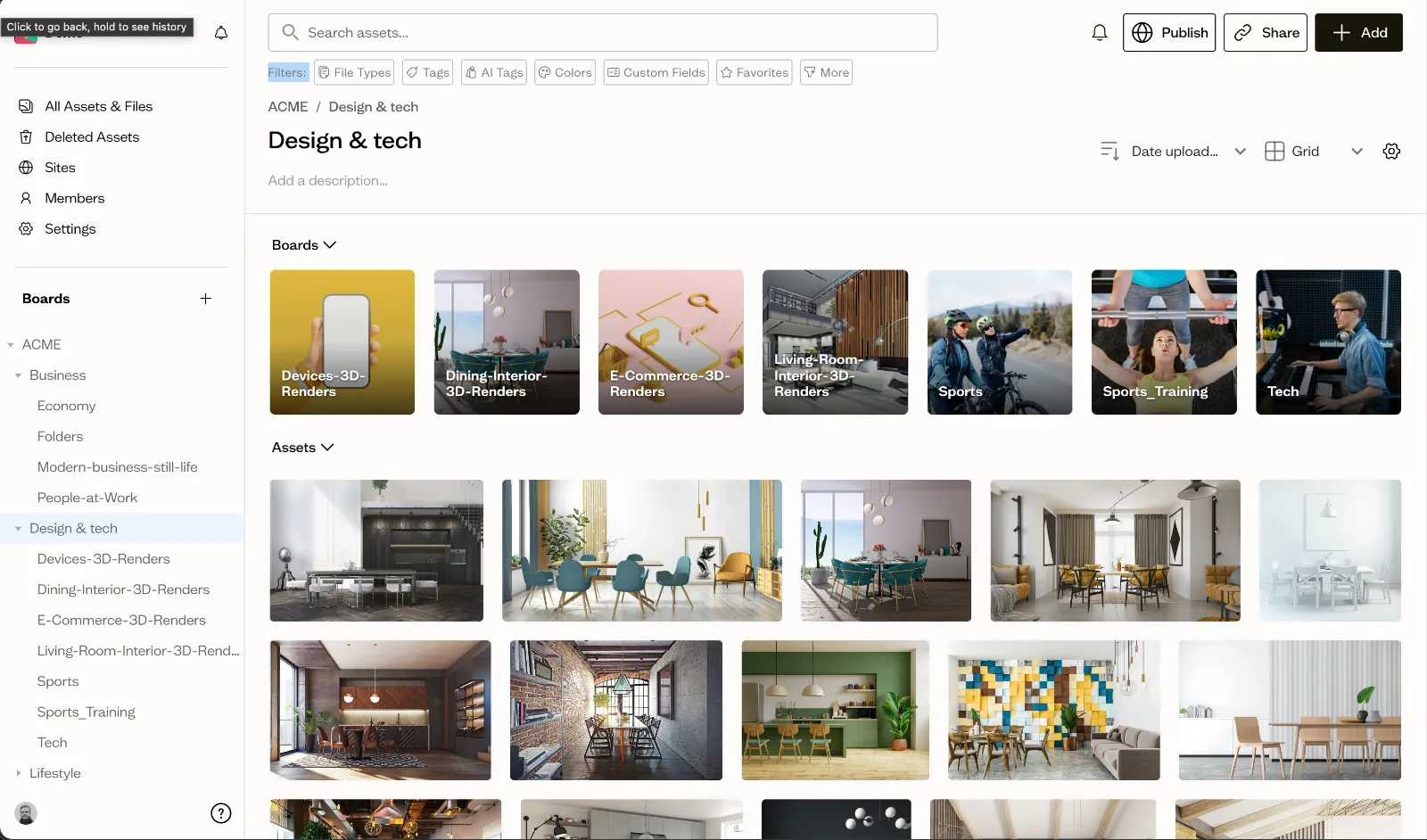
Getting Started
Getting your team up and running is straightforward, and you'll be organized in minutes. Here are the three foundational steps to set up your workspace.
Invite Your Team
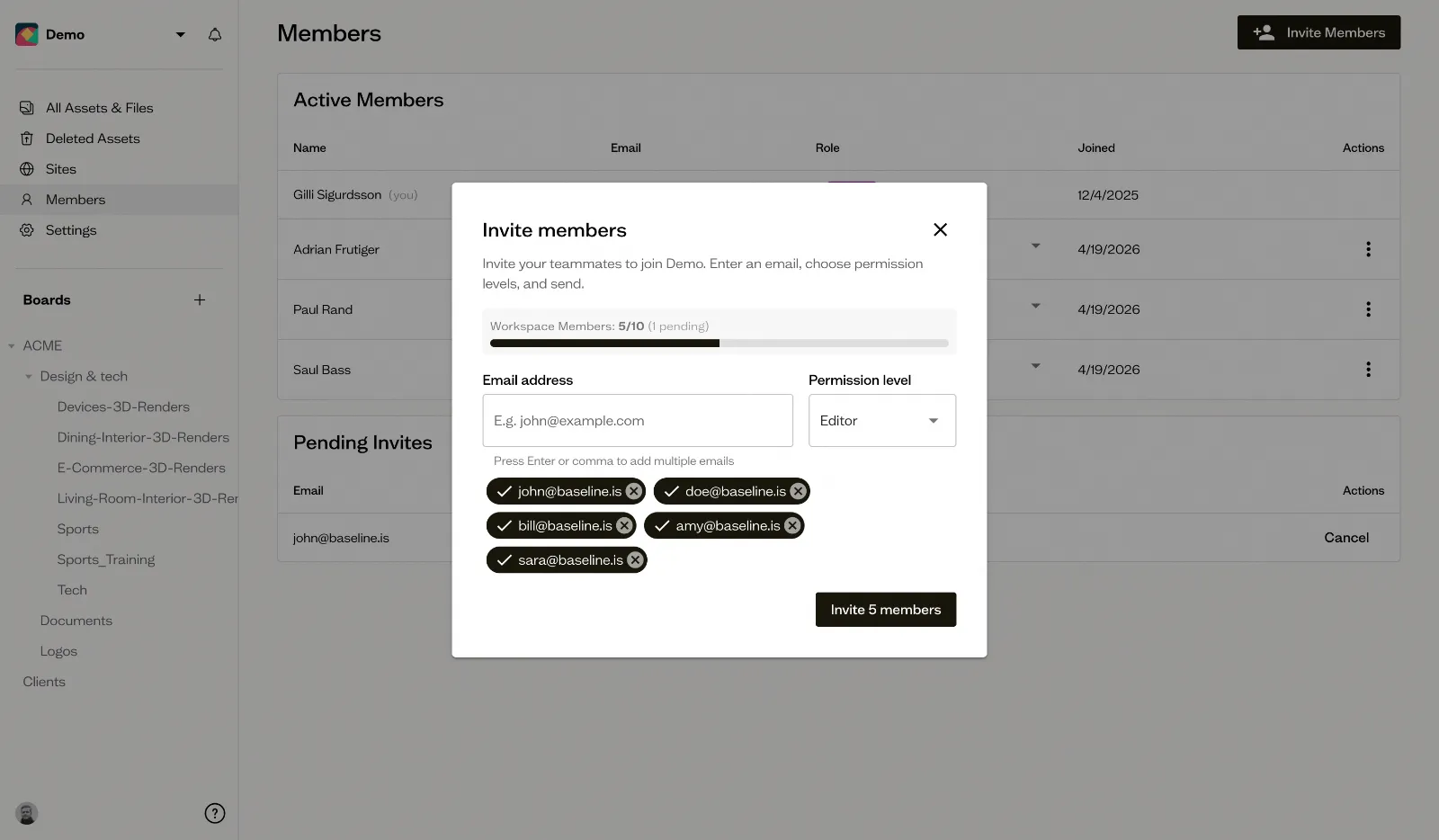
Digital asset management works best when your entire team is connected. Start by inviting team members who will be creating, reviewing, or using your assets. This might include designers, marketers, content creators, project managers, and stakeholders who need access to approved materials.
Navigate to the Members option in the sidebar and send out invites. Team members will receive a link via email to join your workspace, and you can set their permissions based on their role. Collaboration is at the heart of Baseline v2, so bringing your team in early ensures everyone stays aligned from day one.
Create Boards
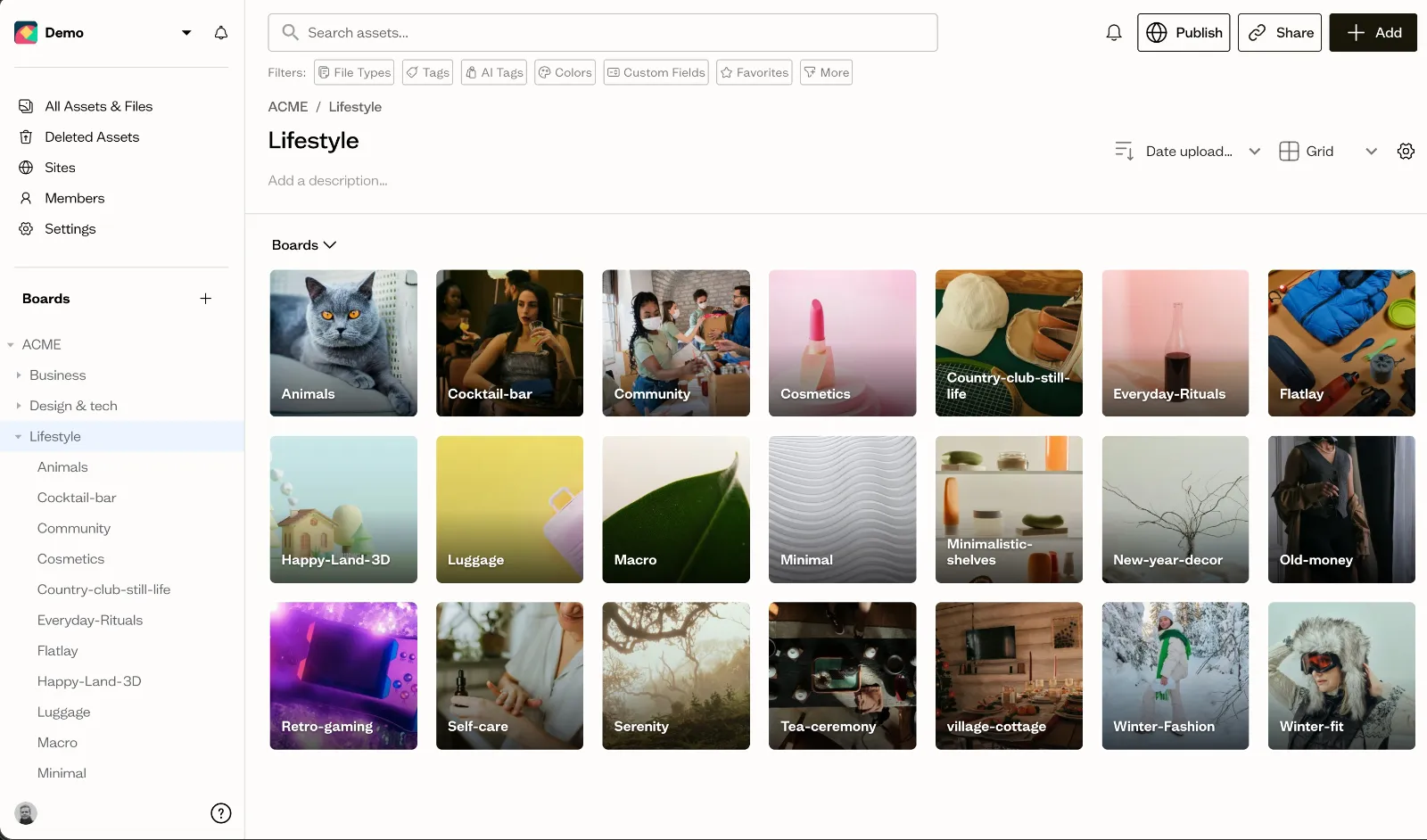
Boards are the core organizing principle in Baseline. Think of them as smart folders that help you group related assets together. You might create boards for specific campaigns, ongoing projects, asset types like photography or video, or client work.
The beauty of boards is their flexibility. You can organize them however makes sense for your workflow. A marketing team might create boards for each quarter's campaigns, while a creative agency might organize by client or project. There's no wrong way to structure your boards as long as it works for your team. A single assets can then live inside multiple boards, with it's own set of comments, so feedback from a client won't get mixed up with internal thoughts.
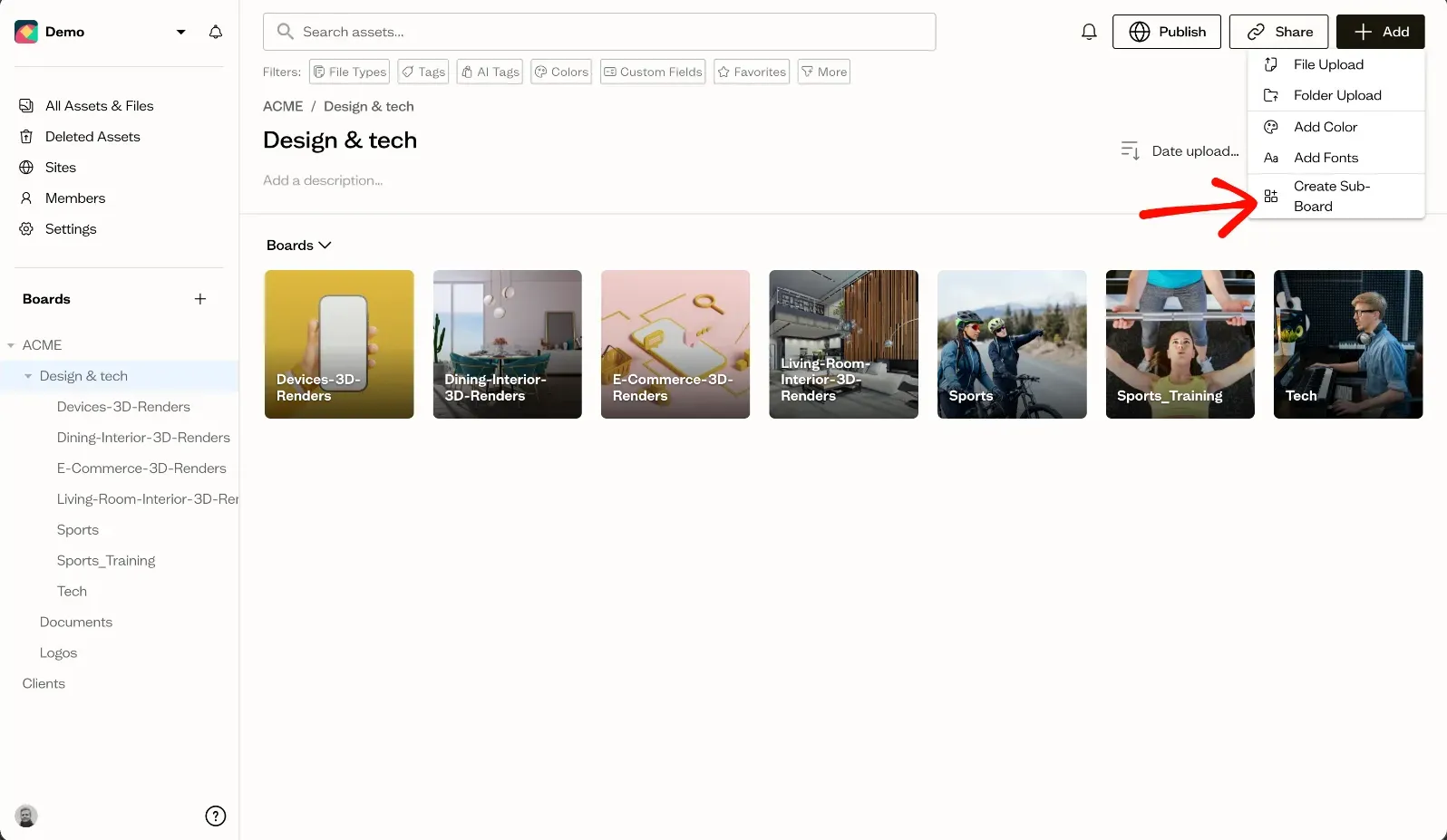
To create a new board, click the "+ Add" button in the top right corner of your workspace. Give your board a descriptive name, and you're ready to start filling it with content.
Fill It With Content
Once your boards are set up, it's time to add your digital assets. Baseline supports all common file types, with a focus on images, videos, documents, and design files, but you can upload any kind of file. You can drag and drop files directly into a board, upload from your computer, or import assets in bulk.
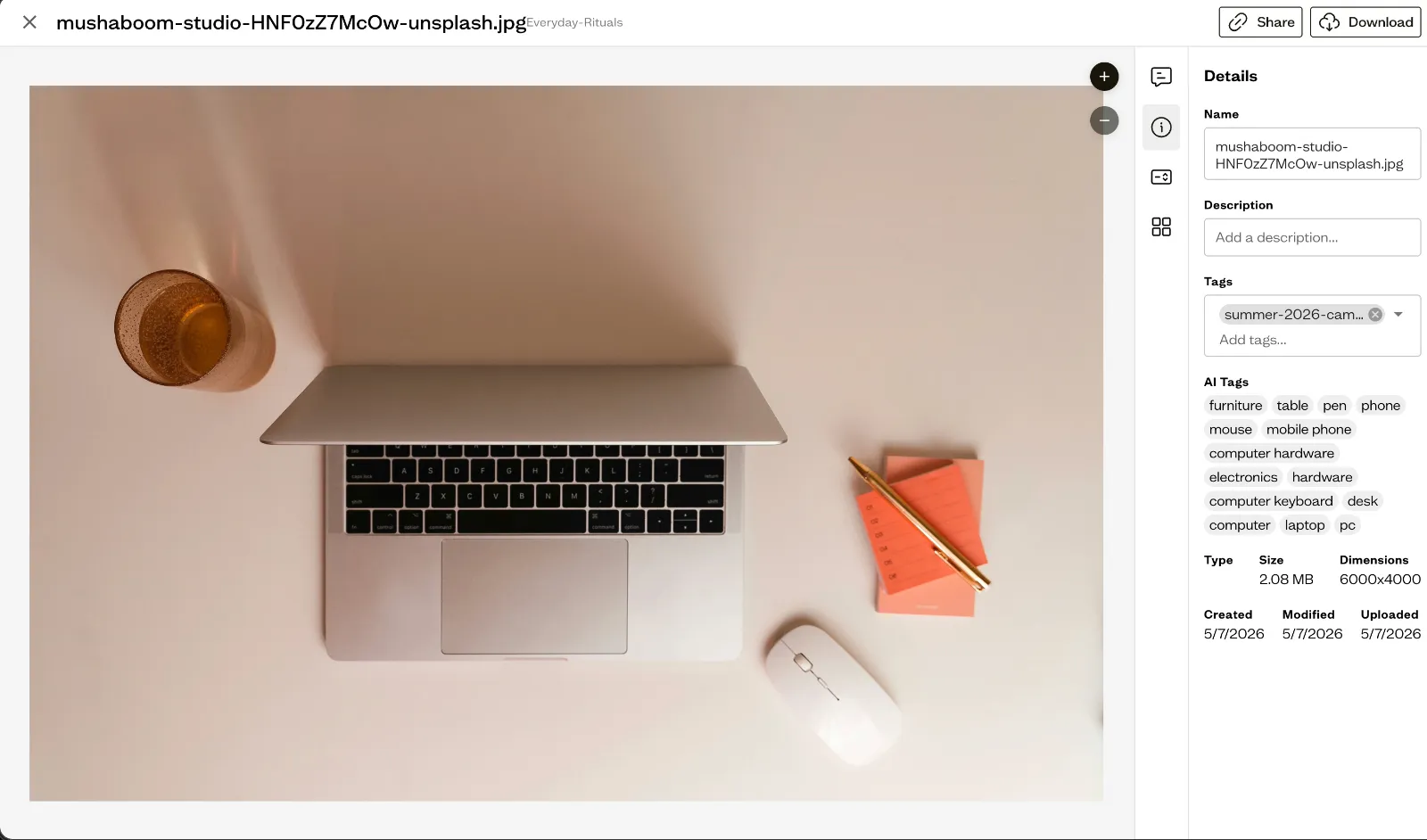
As you add content, you'll start to see the power of having everything organized and searchable in one place. Each asset gets a detail page where you can add metadata, tags, and custom fields that make finding the right file effortless.
Organize Your Assets Like a Pro
One of the biggest challenges in digital asset management is keeping everything organized as your library grows. Baseline gives you powerful tools to structure your assets exactly how you need them.
Build a Flexible Board Hierarchy
Create boards for campaigns, projects, or asset types depending on what makes sense for your workflow. For larger initiatives, you can use sub-boards to organize within a parent board. For example, a "2026 Product Launch" board might contain sub-boards for social media assets, email graphics, and presentation decks.
Assets aren't locked into a single location either. You can drag assets between boards anytime your organization needs change. When you move an asset, you have two options: add it to another board while keeping it in the original location, or move it entirely. This flexibility means your organization can evolve alongside your projects.
Master Tagging and Custom Fields
Metadata is what transforms a simple file storage system into a powerful digital asset management platform. Baseline offers two complementary ways to add metadata to your assets: tags and custom fields.
Tags are perfect for quick, informal labels. Use them for flexible categorization like "Social Media", "Q4 Campaign", "Hero Image", or "Needs Update". Tags are easy to add and remove, making them ideal for ad-hoc organization and filtering.
Custom fields provide structured data tracking. These are perfect for consistent information like Status, Campaign Name, Due Date, Asset Type, or Approval Stage. Custom fields can be text, dates, numbers, or single-select and multi-select options. This structured approach ensures consistency across your team and enables powerful filtering and reporting.
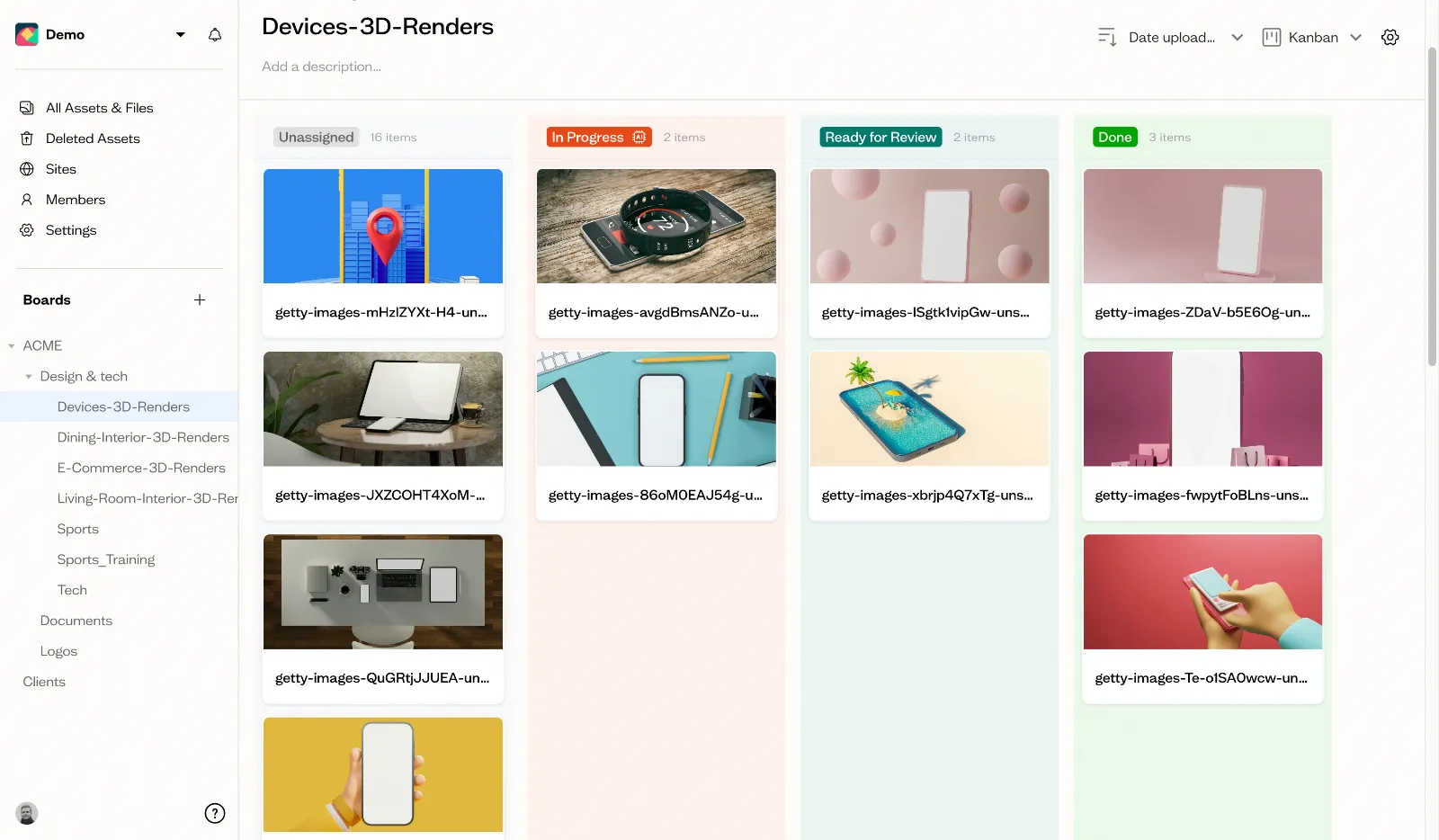
Pro tip: Single-select custom fields like "Status" can be visualized in a Kanban view, giving you a visual pipeline of your assets as they move through different stages. This is incredibly powerful for managing approval workflows or tracking asset production progress.

Share Your Work with the World
Your assets are meant to be seen, and Baseline makes it easy to showcase them professionally.
Publish Beautiful Sites
The Publish Sites feature lets you take your organized boards and turn them into live websites with just a few clicks. Choose from several professionally designed templates that are optimized for different use cases:
- Brand Guides: Perfect for sharing your brand identity, logos, colors, and typography with internal teams or external partners
- Photography: Showcase photography collections in a gallery format that highlights the visual impact of your work
- Event Gallery: Share event photos with attendees or stakeholders in an elegant, browsable format
- Art Portfolio: Display creative work in a portfolio style that lets the art speak for itself
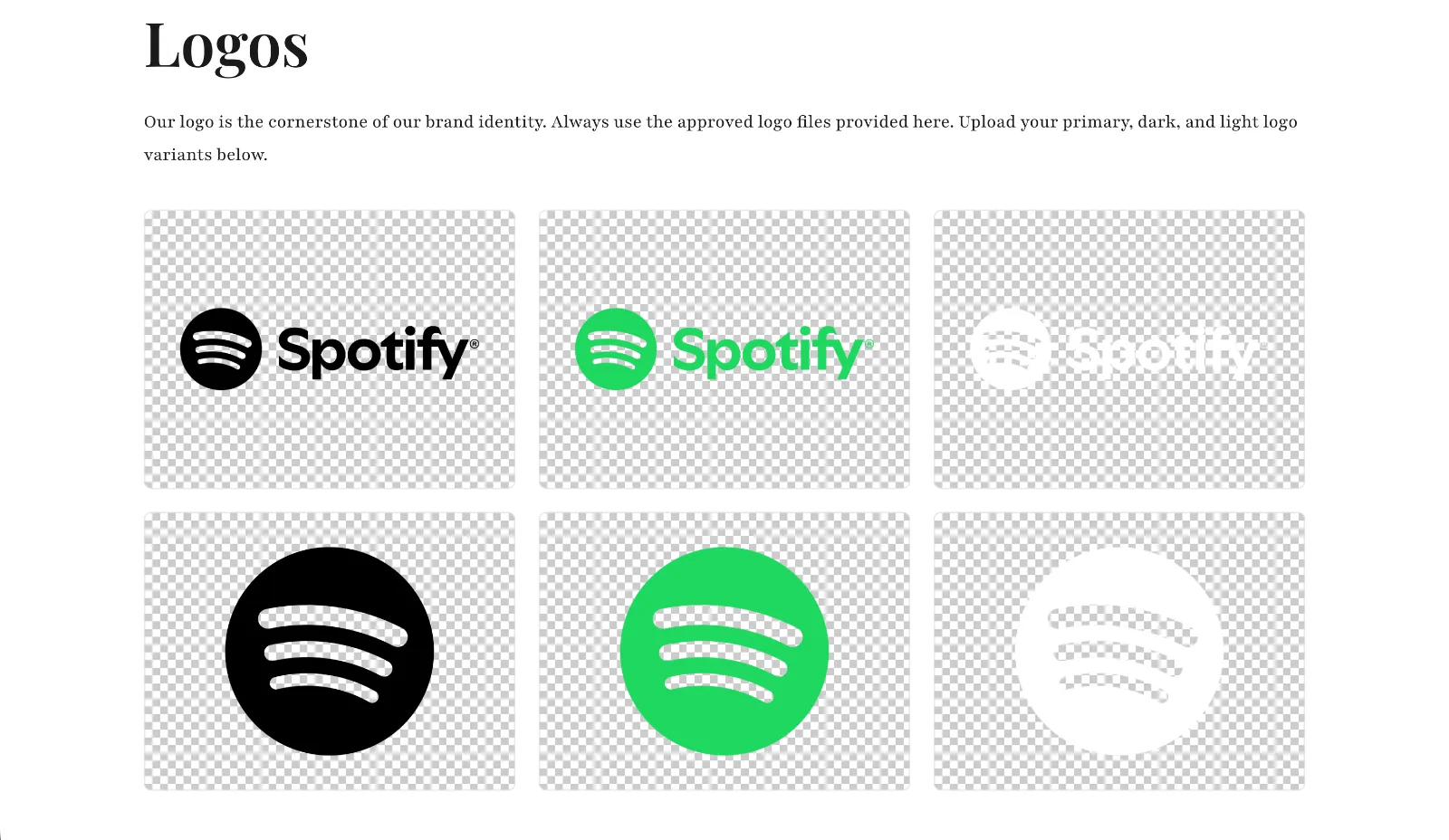
Each template is customizable, and you control exactly which assets appear on your published site. When you update assets in your board, your published site automatically reflects those changes. To publish a board, simply click the "Publish" button in the top right corner of any board and select your preferred template.
Collaborate Without the Chaos
One of the most frustrating parts of creative work is managing feedback. Email threads get confusing, comments get lost, and it's hard to track what's been addressed. Baseline solves this with built-in collaboration features that keep everything organized.
Visual Feedback and Annotations
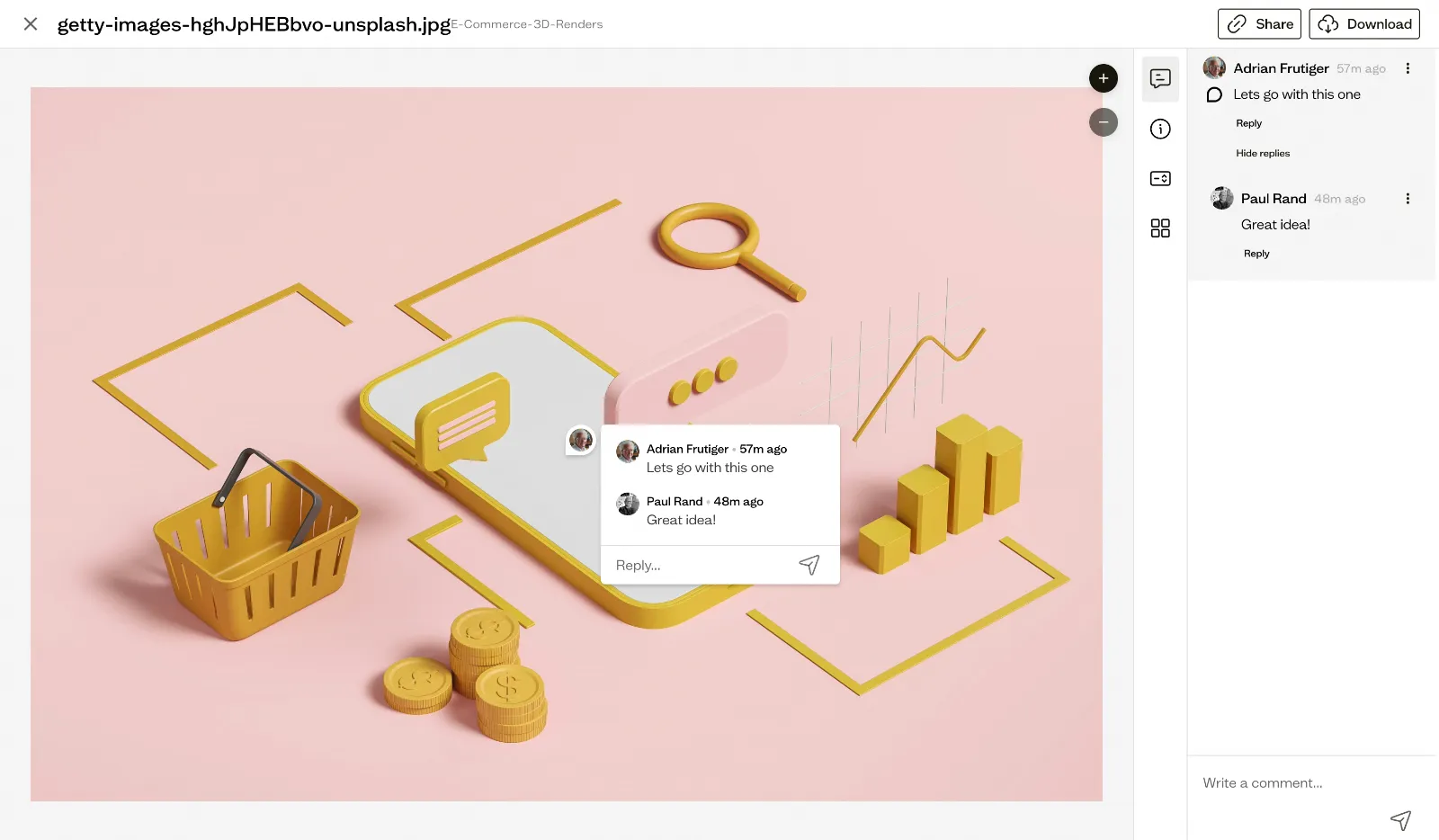
Instead of trying to describe feedback in words ("the logo in the upper right corner needs to be bigger"), team members can draw boxes directly on assets to highlight specific areas. This visual approach eliminates confusion and makes feedback crystal clear.
Add comments to any annotation to provide detailed feedback and context. All feedback is tracked in one place on the asset's detail page, so you never have to hunt through email threads or chat messages to find what was said.
Baseline keeps everyone in the loop automatically—team members who are following a board or have commented on an asset will receive notifications when new comments are added. This means the right people stay informed without manual coordination, and conversations continue seamlessly even as your team collaborates asynchronously.
This centralized approach is a game-changer for creative reviews, client feedback, and quality assurance processes. Everyone can see the complete feedback history, and nothing gets missed.
Share Securely with Anyone
Different situations call for different sharing approaches, and Baseline gives you options that balance access with control.
Share Links for External Stakeholders
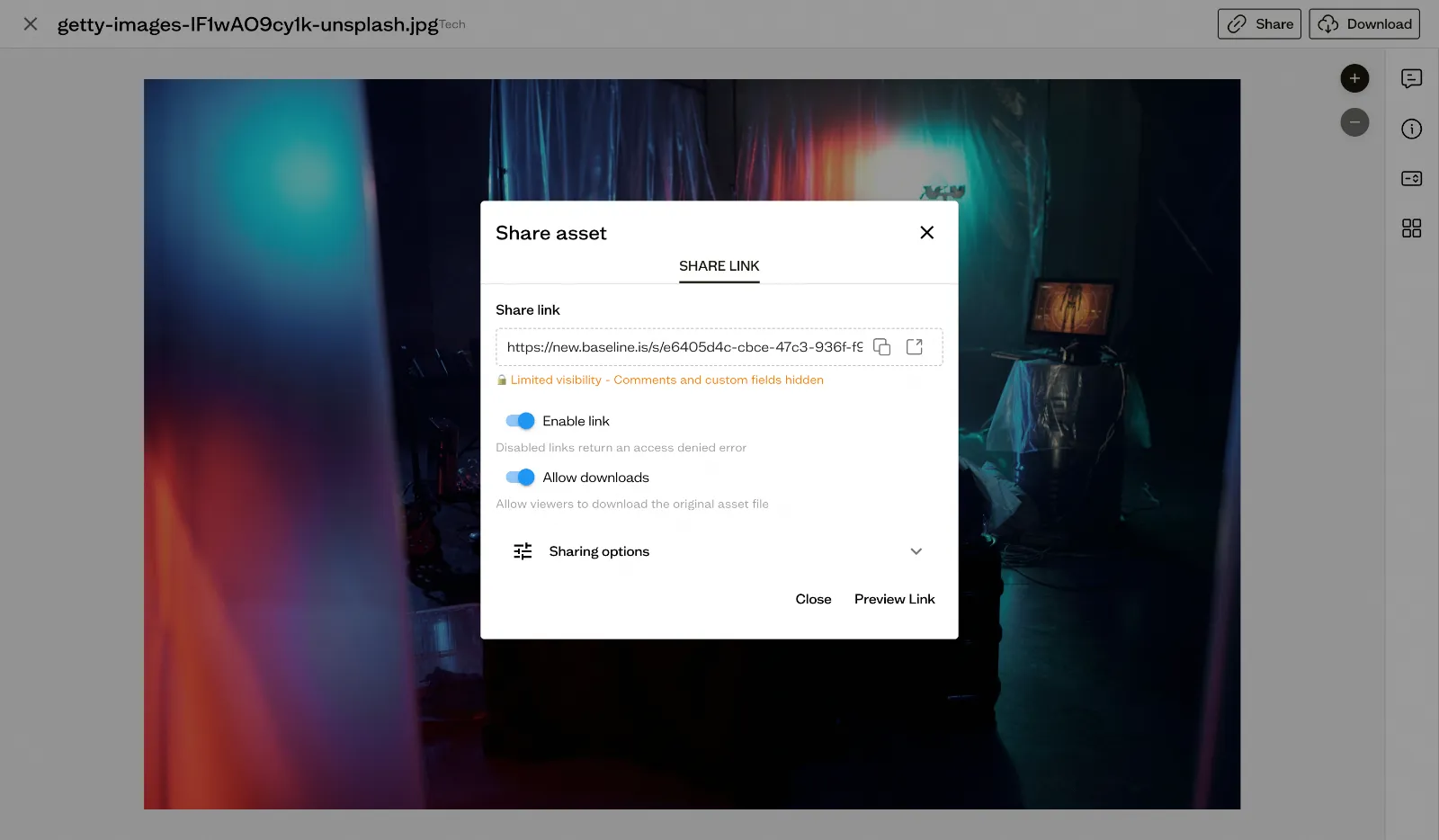
When you need to share assets with people outside your team, generate a share link for any board or individual asset. These links can be password-protected for an extra layer of security, and you can set them to expire after a certain period if needed.
Share links are perfect for sending campaign assets to vendors, sharing proofs with clients, or giving contractors access to the files they need without creating full accounts.
Guest Access for Clients
For ongoing client relationships or external partners who need regular access, you can invite them as guests to specific boards. Guest users can view and comment on assets without having access to your entire workspace, giving you granular control over what different people can see.
Build Efficient Approval Workflows
Keeping creative projects on track requires more than just organization—you need clear workflows that move assets from concept to approval efficiently.
Track Progress with Custom Fields
Set up approval status tracking using custom fields to create a clear pipeline. The default approval workflow looks like: Needs Review → In Progress → Approved and is set with the Status custom field that comes with your workspace. You can customize these stages to match your specific process, whether that's a simple two-stage review or a complex multi-stakeholder approval chain.
Visualize Your Workflow
The Kanban view shows the status of all assets at a glance, making it easy to identify bottlenecks and keep projects moving. You can also use custom field filters to see all assets waiting for review, everything currently in progress, or only approved assets ready for use. This visual approach makes it simple to understand where each asset is in your approval pipeline and what needs attention next.
Start Creating Chaos-Free Workflows
You now have everything you need to transform how your team manages digital assets. You know how to organize with boards and sub-boards, add metadata with tags and custom fields, publish professional sites to showcase your work, collaborate with visual feedback and annotations, share securely with stakeholders and clients, and build approval workflows that keep projects on track.
The key to success with Baseline is to start simple and build as you go. Create a few boards, invite your team, and begin organizing your assets. As you get comfortable with the basics, explore the more advanced features like custom fields, published sites, and workflow automation.
Digital asset management doesn't have to be complicated or chaotic. With Baseline, you get all the power of enterprise DAM platforms with the simplicity and ease of use your team actually wants to adopt.
Ready to dive deeper or need help with something specific? Click the "?" button in the bottom left corner to contact our support team. We're here to help you make the most of Baseline.